Built entirely on Microsoft 365 (Copilot Studio, Power Automate, Dataverse, and Planner), wired together into one system that thinks for itself, with no data leaving the tenant.
The Five Problems That Were Quietly Costing Us
Every managed service team eventually runs into the same wall. Ours just happened to have five distinct cracks in it, and none of them showed up until we went looking.
- No audit log. When a client asked “who approved this?” or “when did we say this would be fixed?”, the honest answer was often “let me check Teams and get back to you.” There was no single, defensible record of what happened, when, or by whom.
- No SLA tracking. Deadlines lived in people’s heads and in email subject lines, not in a system that could actually flag when something was at risk of breaching.
- Conversations buried in Teams. Client issues were discussed, and often resolved, inside Teams chats that nobody outside that thread could see, search, or reference later. The context lived and died in a chat window.
- Manual task entry in Planner. Every single task had to be typed in by hand after a conversation happened elsewhere. Worse than being slow, it reliably lost the tasks that never got written down at all.
- No real ticketing system. Underneath all of this, there was no actual concept of a “ticket”: no lifecycle, no status, no ownership. Just a rolling conversation that everyone hoped someone was tracking.
None of these problems needed a new platform to fix. They needed the tools we already had (Microsoft 365, Copilot Studio, Power Automate, Dataverse) wired together with intent instead of used as disconnected point solutions. That’s what we built, and this is the real, unfiltered account of how it came together.
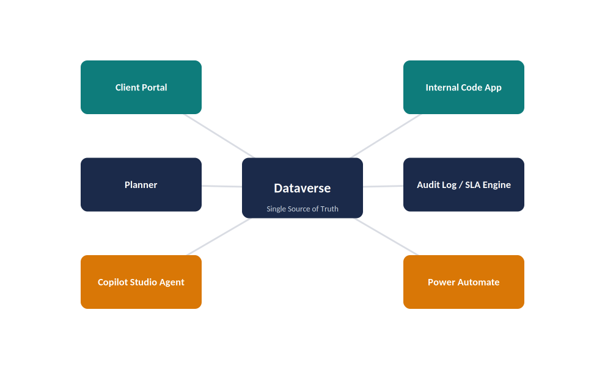
Figure 1: The system at a glance: four components, one Dataverse backbone.
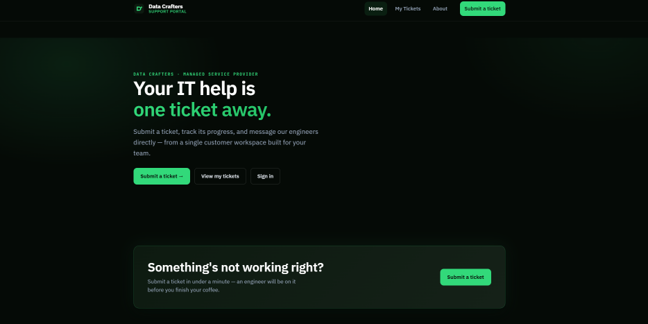
Figure 2: The Support Portal
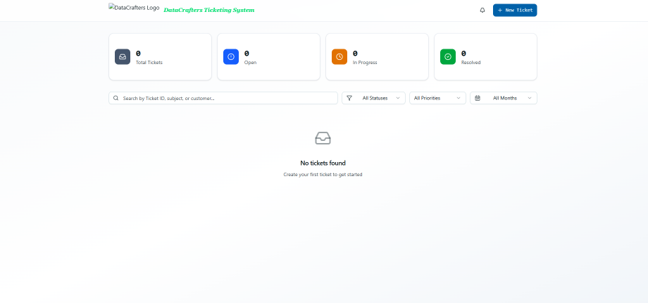
Figure 3: The In-house ticketing App
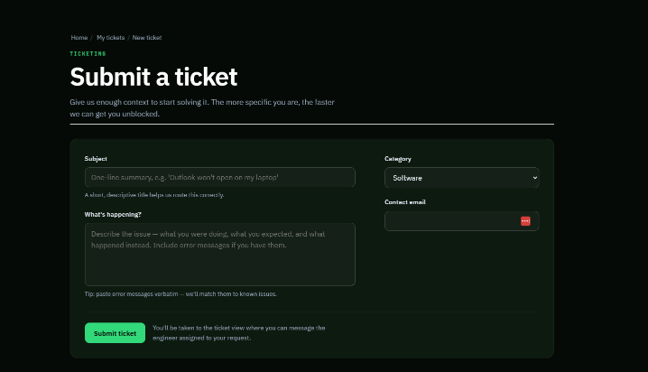
Figure 4: Customers can Submit a Ticket
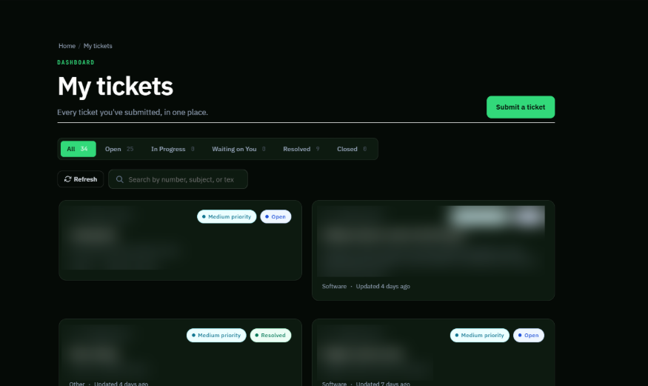
Figure 5: Customers can view their tickets
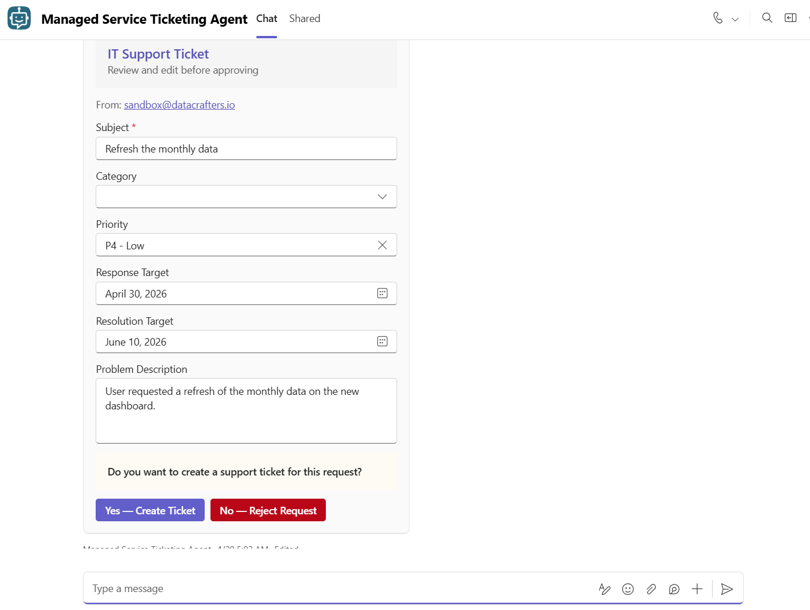
Figure 6: Team Receiving Ticket Request
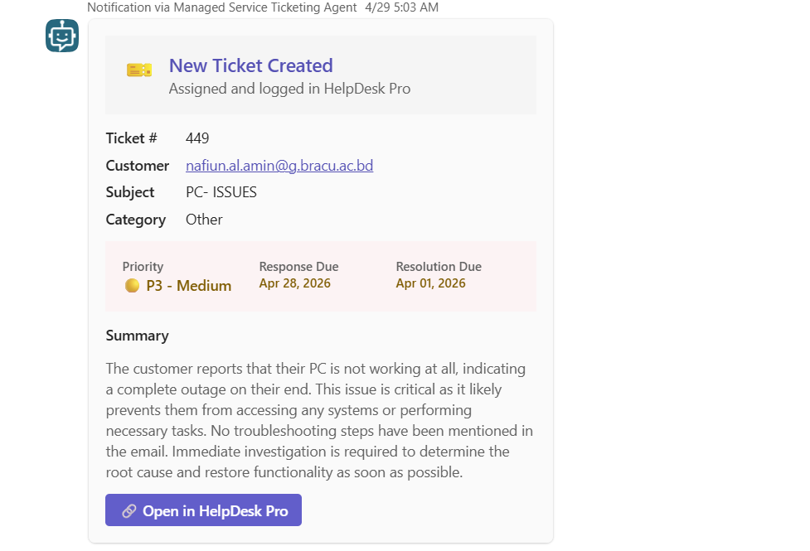
Figure 7: Team Receiving Ticket Confirmation Notification
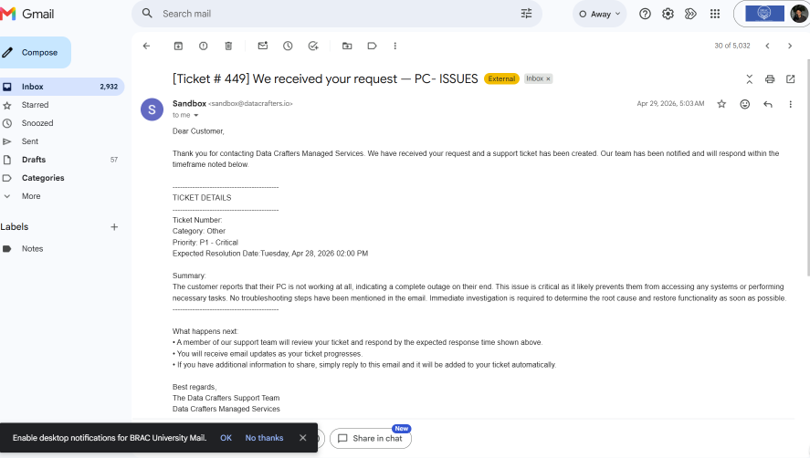
Figure 8: Customers updated about Ticket Creation
Why We Didn’t Buy a Ticketing Platform
The obvious move would have been to buy an off-the-shelf ticketing tool. We looked, and every option came with the same trade-off: yes, you get a real ticket lifecycle, SLA rules, and an audit trail out of the box, but you also get a brand-new silo, a brand-new login for every client, and a system that has no idea what’s happening in your Dataverse, your Planner, or your Teams tenant unless you pay again for the integration.
We didn’t need another system to manage. We needed the system we already had to start behaving like one. So instead of buying “a ticketing platform,” we built the ticketing layer directly into Dataverse, with the audit trail, SLA logic, and structured lifecycle a real ticketing system needs, but native to the tools our team already lives in every day.
The Architecture at a Glance
The system runs on four components, all reading and writing to the same Dataverse backbone:
| Component | Role |
| Client Portal | Clients log in, raise tickets, and chat directly under their ticket: visible, searchable, permanent |
| Internal Code App | React/TypeScript Power Apps Code App where our team manages tickets, tasks, SLAs, and closures |
| Copilot Studio Agent | Classifies incoming requests, validates senders, drafts summaries, tracks SLA risk, and detects closure intent |
| Power Automate + Planner | Automatically creates and assigns tasks, syncs status, and drives the ticket lifecycle end to end |
Dataverse is the single source of truth every one of those components reads from. A ticket looks the same whether it came from an email, a portal message, or an internal chat. Same fields, same audit trail, same SLA clock. That consistency is what turns four separate tools into one product.
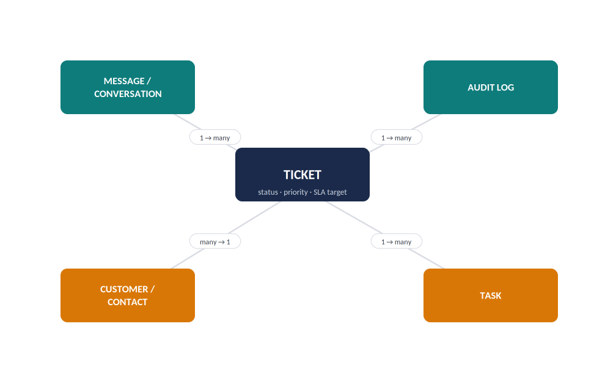
Figure 9: Core Dataverse tables and how they relate to the Ticket record.
Killing the “Who Approved This?” Problem: Built-In Audit Logging
This was the fix we should have built years ago. Every state change on a ticket (created, assigned, reassigned, escalated, closed) now writes an immutable entry to an audit log tied directly to the ticket record. Every message, from every channel, is timestamped and attributed automatically, because it was never typed anywhere else in the first place.
“ Who said what, and when ” stops being a question anyone has to answer from memory. It’s a query.
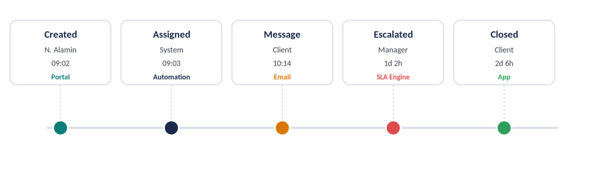
Figure 10: A ticket’s lifecycle, fully attributed and timestamped.
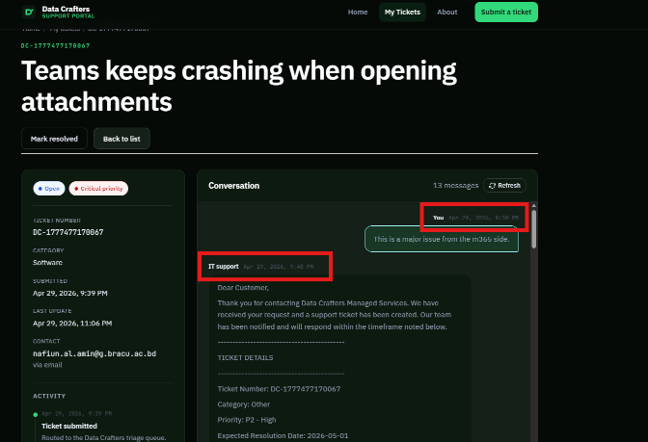
Figure 11- Conversations Logged
Deadlines That Enforce Themselves: SLA Tracking
The second problem (no SLA visibility) turned out to be one of the simplest wins once tickets had a real lifecycle to hang a clock on. Every ticket now carries an SLA target based on priority and ticket type, and Power Automate watches the clock in the background, flagging tickets that approach their SLA deadline before they breach it.
Clients see their own SLA status in the portal. Our team sees it (and any tickets at risk) the moment they open the internal app. Nobody has to remember a deadline the system is already watching for them.
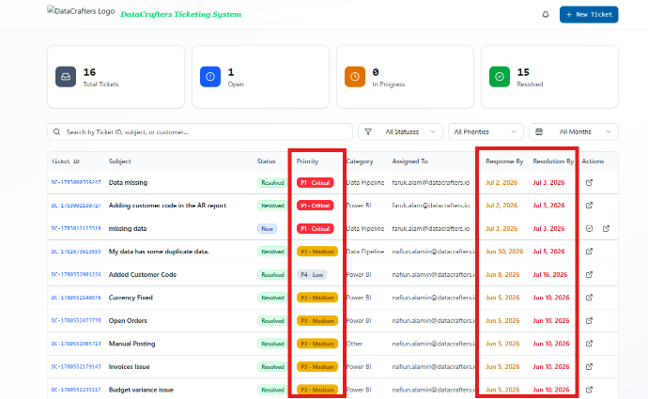
Figure 12: SLA status at a glance
Getting Conversations Out of Teams and Into the Record
Teams is a great tool for talking to your own team. It’s a terrible system of record for client conversations, because everything discussed inside a chat window is invisible to anyone outside it, including, six months later, the person who had the conversation in the first place.
So we pulled the conversation itself out of Teams and into the ticket. Every ticket now has its own chat surface, available identically from the client portal and the internal code app, and every message (whether it’s the client asking a question or our team replying) writes directly into the ticket’s conversation log in Dataverse.
Email hasn’t disappeared, either. When a message comes in by email, an AI Builder prompt inside Copilot Studio validates the sender against a domain whitelist and classifies intent (new issue, reply, or closure confirmation) and Power Automate threads it into the same conversation using the message’s Internet Message-ID, matching on the In-Reply-To and References headers so even forwarded or reply-all chains land in the right place. Portal chat, in-app messages, and email all converge into one timeline, permanently searchable, with nothing left behind in a Teams window that closes and is forgotten.
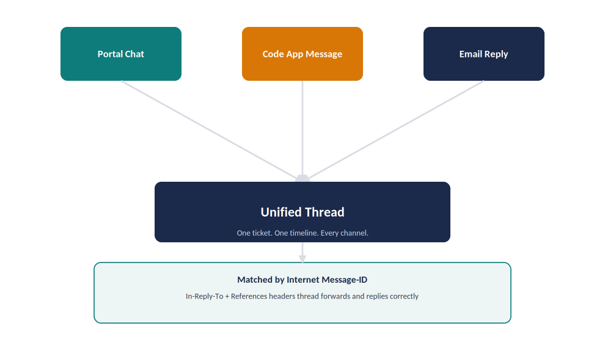
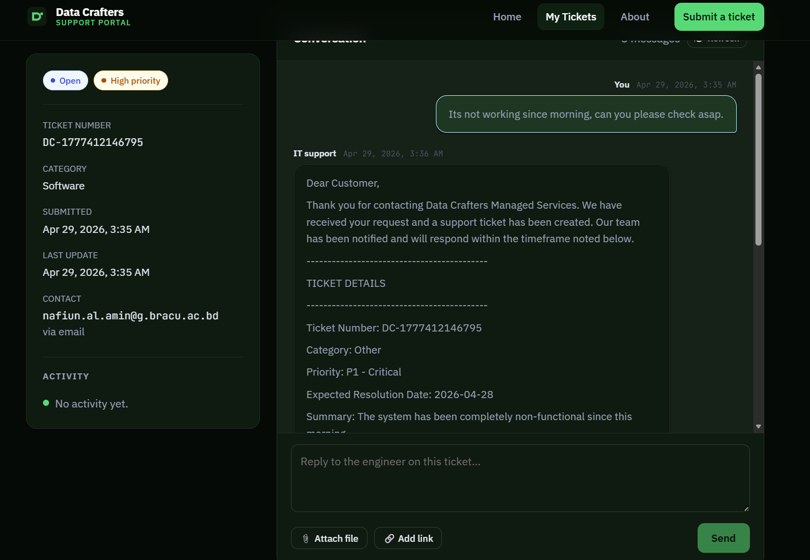
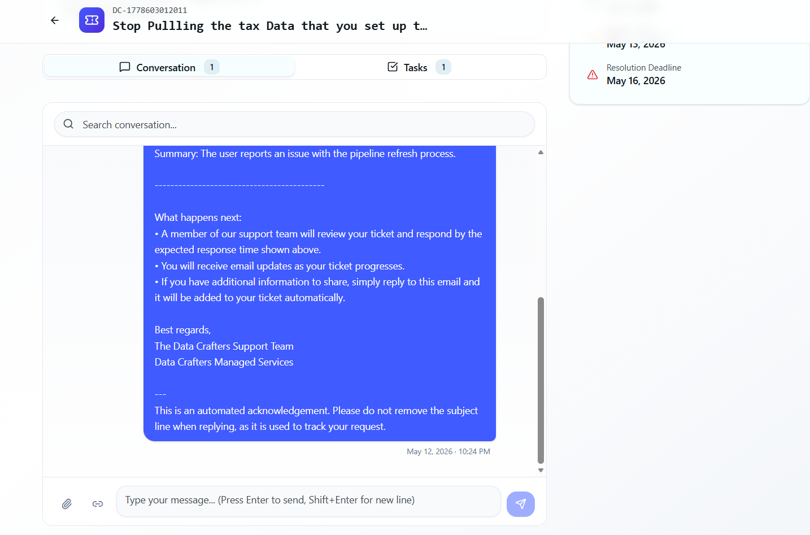
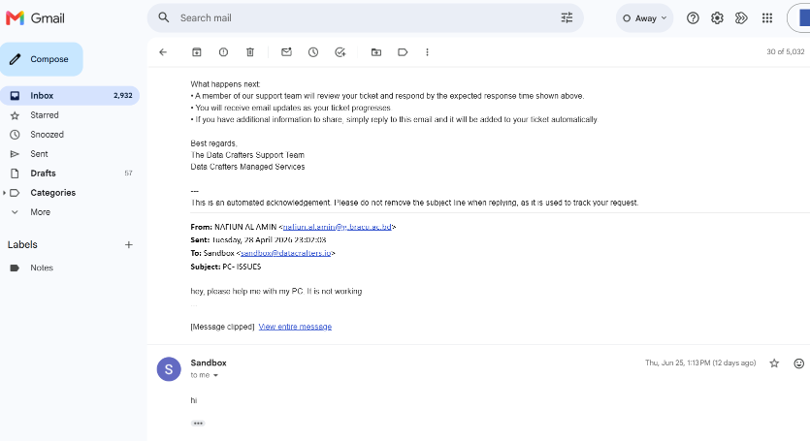
Figure 13: Portal, app, and email conversations converging into one thread.
From Manual Planner Entries to Automatic Task Creation
The old workflow was: someone has a conversation, remembers to open Planner, and types the task in by hand, assuming they remember, and assuming they get to it before something more urgent interrupts them. In practice, a task only existed if someone remembered to create it.
Now, the moment a ticket is validated and classified as a new issue, Power Automate:
- Creates the ticket record in Dataverse, linked to the validated customer
- Generates one or more task records automatically, assigned to the right person
- Mirrors each task into Planner, so the team keeps working exactly where they already do. They just never have to type a task in from scratch again
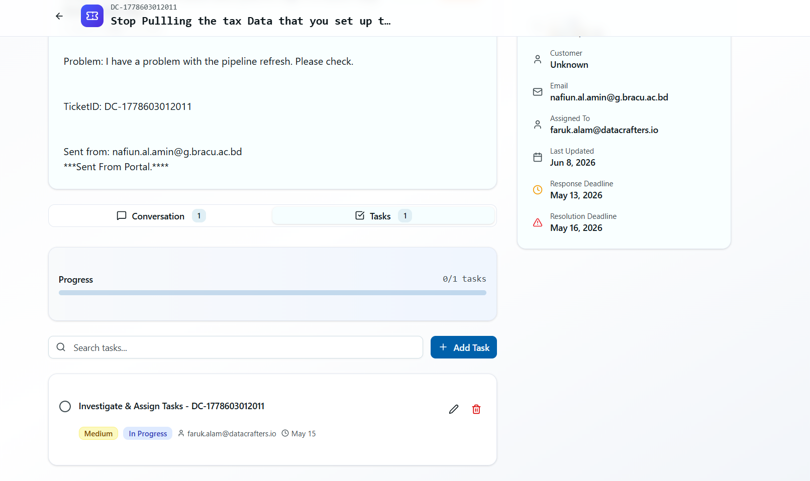
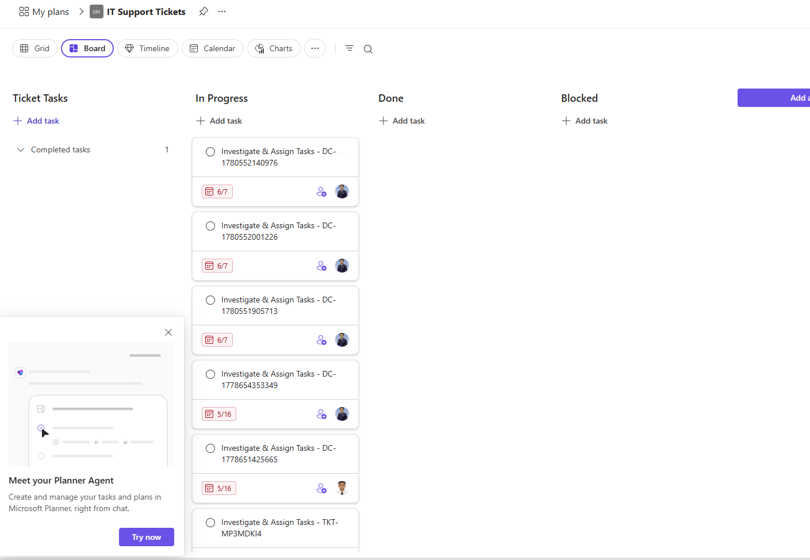
Figure 14: Tasks creation in App automatically adds the Tasks in the Planner.
Status flows both ways: complete a task in Planner, and the ticket’s progress updates in Dataverse automatically. No double entry, no tasks that exist in someone’s head and nowhere else.
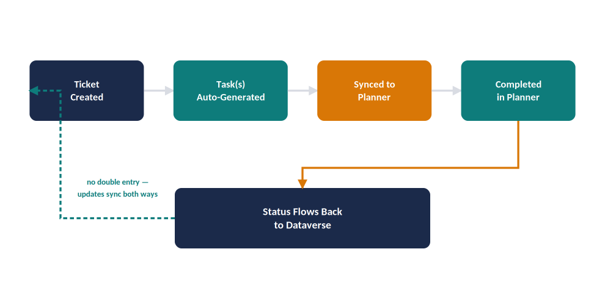
Figure 15: Tasks generated automatically and synced both ways with Planner.
The Agent’s Other Job: Summaries and Closure
Beyond intake, the same Copilot Studio agent handles two more jobs that used to eat into every engineer’s day:
Client-Facing Summaries
The agent pulls the ticket’s conversation history and task status from Dataverse and drafts a plain-language update (what was reported, what’s been done, what’s next) ready for a human to review and send, or sent automatically for low-risk updates.
Closure Requests and Confirmation
When work wraps up, the agent asks the client to confirm the issue is resolved. Their reply, from any channel, runs back through the same classification prompt used at intake. A confirmation closes the ticket automatically; anything else (“not fixed” or a new issue) routes straight back to the team instead of closing silently. Our team can also close a ticket directly from the internal app, and the client can confirm from the portal. Both paths write to the same status field, so there’s never a disagreement about whether something is actually done.
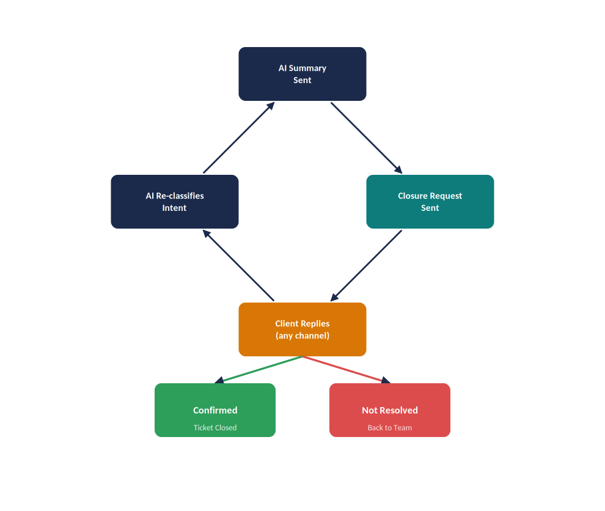
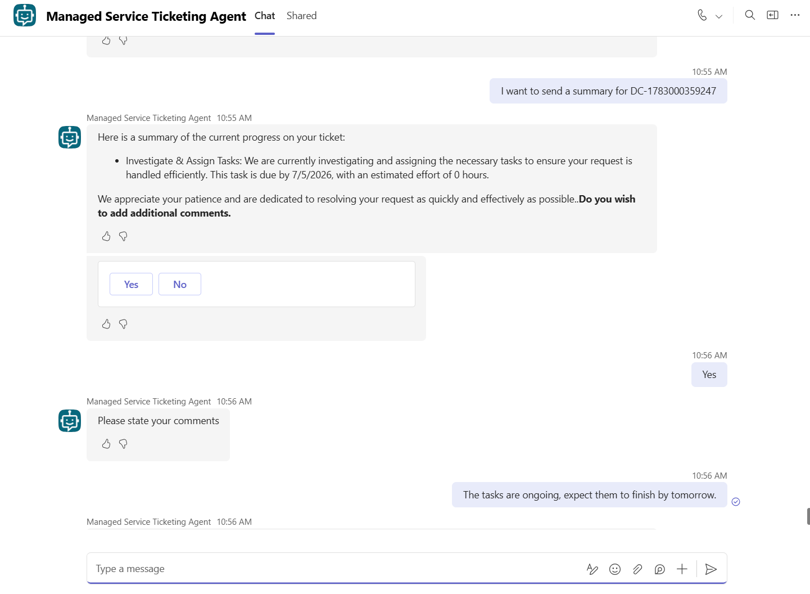
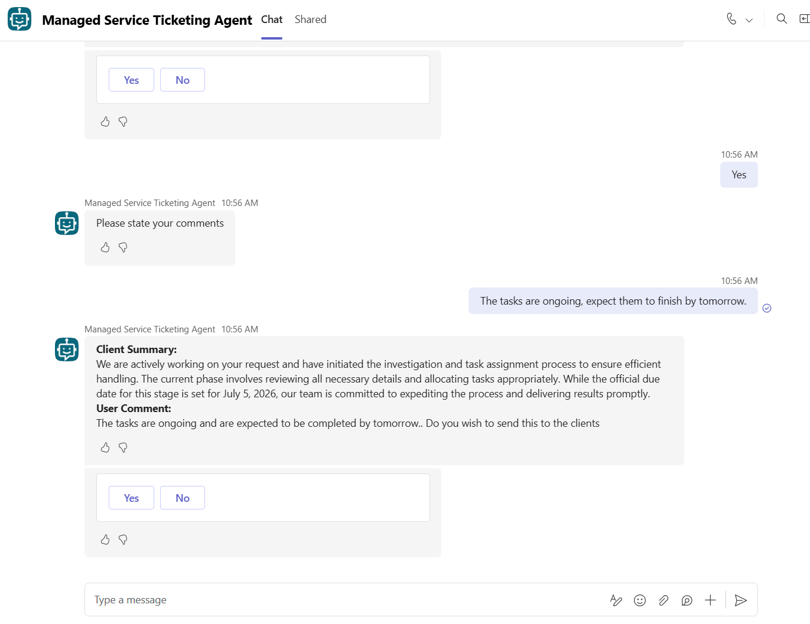
Figure 16: Sending Summaries to Clients
What Actually Broke Along the Way
Nothing in this interconnected build worked cleanly the first time, and the failures taught us more than the parts that worked immediately:
- Threading broke on forwarded emails. A client forwarding a ticket email generated a new Message-ID chain our matching logic didn’t recognize, spawning duplicate tickets. Fixed by also checking the full References header chain, not just direct In-Reply-To.
- Whitelist false negatives. Legitimate replies from personal or forwarded addresses outside the whitelist were being discarded. Changed the flow to route these to manual review instead of silently dropping them.
- AI Builder running on everything, including spam. Classifying every inbound email burned through AI Builder capacity fast. A lightweight rule-based pre-filter now catches obvious noise before it ever reaches the AI step.
- Planner sync race conditions. Simultaneous updates in Planner and Dataverse occasionally overwrote each other. A last-modified timestamp check before writing resolved the conflict instead of silently losing updates.
- SLA clocks that didn’t pause correctly. Early SLA logic kept counting down even while a ticket was waiting on the client, unfairly flagging tickets as at-risk. Added a “waiting on client” state that pauses the SLA clock until the client responds.
What This Actually Fixed
Mapped directly against where we started:
| Before | Now |
| No audit log: “let me check and get back to you” | Every action, on every ticket, time-stamped and attributed automatically |
| No SLA tracking: deadlines lived in people’s heads | Automated SLA clocks with proactive escalation before breach |
| Conversations buried in Teams | One searchable, permanent conversation log per ticket, visible from portal and app |
| Manual task entry in Planner | Tasks generated and assigned automatically, synced both ways |
| No real ticketing system | A full lifecycle: created, assigned, worked, summarized, confirmed, closed |
None of it required a new platform, a new license, or data leaving the Microsoft 365 tenant. It required treating the tools already open on everyone’s screen as one connected system instead of five disconnected habits.
Blueprint: What You’d Need to Build This Yourself
- Dataverse tables for Ticket (with status and SLA fields), Message/Conversation, Audit Log, Task, and Customer
- Copilot Studio with AI Builder prompt nodes for intent classification + validation, and for summary generation
- Power Automate flows for inbound email processing, ticket/task creation, SLA monitoring and escalation, two-way Planner sync, and closure detection
- A client-facing surface (a Power Pages portal or Power Apps Code App) with a chat component writing directly into the Message table
- An internal front-end for your team, ideally the same Code App with role-based views rather than a second application to maintain
The pattern holds for any process where requests come in through multiple channels and need classification, ownership, a deadline, and a paper trail: ticketing is just the clearest example.
Closing Thought
The real unlock wasn’t any single flow, prompt, or table. It was refusing to accept that “no audit log” or “manual Planner entry” were just facts of life.
Every one of those five problems had a real fix sitting inside tools we already owned. We just had to stop treating them as separate tools and start treating them as one system.
If your team is still running managed services out of Teams chats and manual Planner entries, there’s a good chance you already have everything you need to fix that.
Have questions about a specific piece of this, the SLA escalation logic, the Message-ID threading, or the audit log schema? Reach out. Happy to go deeper on any section.