
POWER PLATFORM
One Connector, Two Problems Solved.
Here’s What I Stopped Writing in Power Automate.
A small custom connector that turned out to be one of the most reusable things in my toolkit, handling leave overlaps and capacity planning with the same logic.
June 2025 · 8 min read · Power Automate · Custom Connectors · C#
If you have spent any real time in Power Automate, you know the feeling. You need to figure out how many working days are in each week. Simple enough, right?
Then the edge cases start arriving. What if a public holiday falls on Tuesday? What if the person applied for leave only for Wednesday? What if they joined mid-week? What about weekends? Suddenly your flow has a nested if() inside a formatDateTime() inside an addDays(), and debugging it feels like surgery with oven mitts.
The real pain: Power Automate’s expression editor is not designed for complex date logic. Every tiny change means re-opening an expression, guessing where the cursor is, and praying you didn’t break the brackets. There’s no syntax highlighting, no line breaks, no debugger.
The Working Days Problem: One Question Across HR, Finance, and Project Teams
Every organization that plans work around people must answer the same question, in some form, every single day: “How many working days does this person actually have in this date range?”
It sounds trivial. It is not. The same question shows up in completely different parts of the business, wearing different costumes:
| HR · LEAVE When someone applies for 10 days off, how many are actually working days? | MANAGERS · CAPACITY How much can my team realistically commit to next sprint? |
| PMS · STAFFING Can we hit this delivery date with the people we have? | FINANCE · BILLING How many billable days did the team actually deliver this month? |
Underneath the disguise, every one of these questions reduces to the same calculation:
Take a date range. Subtract weekends. Subtract public holidays. Subtract leaves. Subtract days before someone joined. Return the number.
And yet, in most organizations, this calculation is rewritten from scratch every time it’s needed. HR has one version inside their leave app. Finance has another in a spreadsheet. Project managers eyeball it in Excel. Power Automate flows have it buried in expressions that nobody dares touch. Each version has slightly different bugs, edge cases handled differently, and assumptions that quietly drift apart over time.
The deeper issue: there is rarely a single source of truth for “how many working days a person has.” The logic is duplicated across tools, owned by no one, and trusted by everyone, until two reports disagree and a finger-pointing meeting follows.
My Use Case: Capacity Planning in Power Apps
I was building a capacity planning system in Power Apps. For any given person and date range, I needed to know exactly how many working days they were actually available. That answer had to account for three things at the same time:
| 1 | Public holidays from Dataverse, with country-specific date ranges. |
| 2 | Approved leaves from SharePoint: vacation, sick days, anything that blocks a working day. |
| 3 | Joining date: don’t count days before someone actually started. |
And of course, weekends were never working days to begin with. I could have buried all of this in Power Automate expressions. I almost did. But I knew I’d end up writing the same logic again the next time someone asked for a leave summary, or a forecast, or a billing report. So I stopped, and stepped back.
Why Leave Overlaps and Public Holidays Share the Same Logic
Here’s the thing that took me longer to notice than it should have. A public holiday and an approved leave are structurally identical: a date range that should not count as working days. The metadata differs (country code vs. employee email), but the logic for “does this overlap with my week, and if so, how many weekdays does it eat?” is exactly the same.
Which meant: one connector could handle both. I just had to design the input to be generic.
| LEAVE OVERLAP DETECTION When someone applies for leave, check how many actual working days they’re consuming, skipping weekends and existing holidays. | WEEKLY CAPACITY CALCULATION For any person and date range, compute their net available working days, subtracting holidays, leaves, and pre-joining days. |
The Solution: A C# Custom Connector for Working Day Calculations
I wrote the logic once, in C#, and exposed it as a custom connector called CheckHolidayOverlap. The connector accepts a generic JSON payload: a date range, an optional joining date, and a list of date ranges to exclude. It doesn’t care whether those exclusions are holidays or leaves.
INPUT
weekStart: “2025-06-02”
weekEnd: “2025-06-06”
joiningDate: “2025-06-04” // optional
holidays: [ { startDate, endDate, name, countryCode } ]
OUTPUT
totalWorkingDays: 2 // Mon–Fri after joining date
affectedDays: 1 // overlapping exclusions
affectedDates: [“2025-06-05”]
status: “success”
Reversed date ranges? Swapped automatically. Joined after the week ends? Returns zero. Exclusion falls on a weekend? Ignored. Multi-day range? Each day checked individually. Every edge case is handled in one place.
How the Custom Connector Fits Into a Power Automate Flow
The Power App calls a flow with three inputs: email, start date, and number of weeks to plan for. The flow loops through each week and each role, fetching holidays and leaves separately, then calls the connector twice: once for leaves, once for holidays.
POWER APP TRIGGER
Email: string
StartDate: date
RemainingWeeks: number

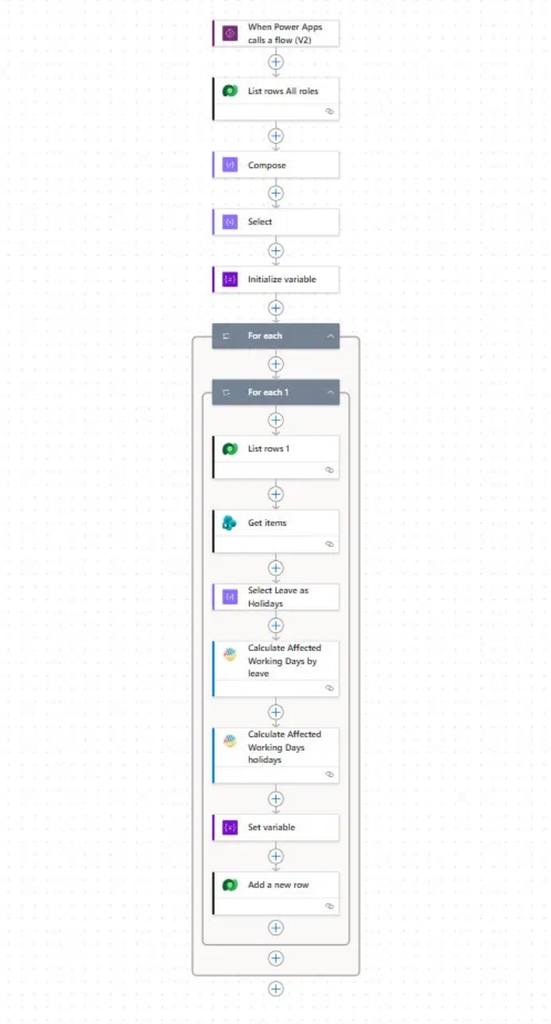
The two highlighted steps are the same connector, just called with different exclusion lists. That’s the moment the design pays off: one piece of logic, reused exactly, with no copy-pasted expressions to keep in sync.
Inside the C# Code: Counting Working Days
Here’s the core working-day calculation: the bit I would have been writing as a one-line Power Automate expression before:
// Effective start = max(weekStart, joiningDate)
DateTime effectiveStart = weekStart;
if (joiningDate.HasValue && joiningDate.Value > weekStart)
effectiveStart = joiningDate.Value;
// Count Mon–Fri between effectiveStart and weekEnd
int totalWorkingDays = 0;
for (int i = 0; i < (weekEnd – effectiveStart).Days + 1; i++)
{
var d = effectiveStart.AddDays(i);
if (d.DayOfWeek != DayOfWeek.Saturday &&
d.DayOfWeek != DayOfWeek.Sunday)
totalWorkingDays++;
}
Clean, readable, testable. Compare that to what the equivalent Power Automate expression would have looked like: a single-line wall of text with no room to breathe.
“The moment I called the connector from my flow and got back totalWorkingDays: 3 on the first try, I actually laughed.”
Benefits of Moving Date Logic Into a Custom Connector
| Easier to debug Logic lives in C#, not inside an expression box. You can log, trace, and test it properly. | Reusable everywhere Same connector handles leaves and holidays. Any flow or app in your environment can call it. |
| Edge cases handled Late joiners, reversed dates, weekend overlaps — all handled in one place, not scattered across flows. | Readable flows Flows read like a story, not a puzzle. Anyone can understand what’s happening at a glance. |
Should You Build Your Own Power Automate Custom Connector?
If you find yourself writing the same complex date, string, or math logic across multiple flows , yes. The barrier to building a custom connector is lower than it looks. You write a C# class, host it, and register it in Power Platform. The platform handles authentication, serialization, and the UI for you.
Start with one operation. One input, one output. Get it working. Then watch how often you reach for it.
The Bigger Lesson
Power Automate is excellent at orchestration: connecting services, handling approvals, reacting to triggers. It’s not a place to write business logic. Pull that logic out, put it somewhere testable, and call it cleanly.
Custom Connector Limits and When to Use Azure Functions
Custom connectors are great, but they’re not infinite. They inherit the Power Platform’s connector runtime constraints, roughly two minutes of execution time per call, and a modest memory ceiling. For a small payload like mine (a date range and twenty or thirty holiday entries), that’s plenty. For anything heavier: thousands of records, large file parsing, looping calls to external APIs, you’ll hit the wall fast.
That’s when you broaden your horizon to Azure Functions. Same C# code, same logic, but hosted somewhere actually built for longer-running and memory-hungry work. Your Power Automate flow doesn’t need to change much; it just calls a Function App over HTTP instead of a custom connector. The orchestration layer stays the same, only the engine underneath gets bigger.
A simple rule of thumb I use: if the operation is small, deterministic, and finishes in under a minute, a custom connector is the right home. If it’s heavy, long-running, or needs more control over the runtime, lift it into an Azure Function and keep your Power Automate flow as the orchestrator on top.
Data Crafters works with HR, operations, and finance teams to build Power Platform solutions where core business logic lives in one tested place, so leave balances, capacity forecasts, and billable days tell the same story in every report. If you are planning capacity or reconciling working days across tools, let’s talk about what it looks like for yours.