Executive Summary
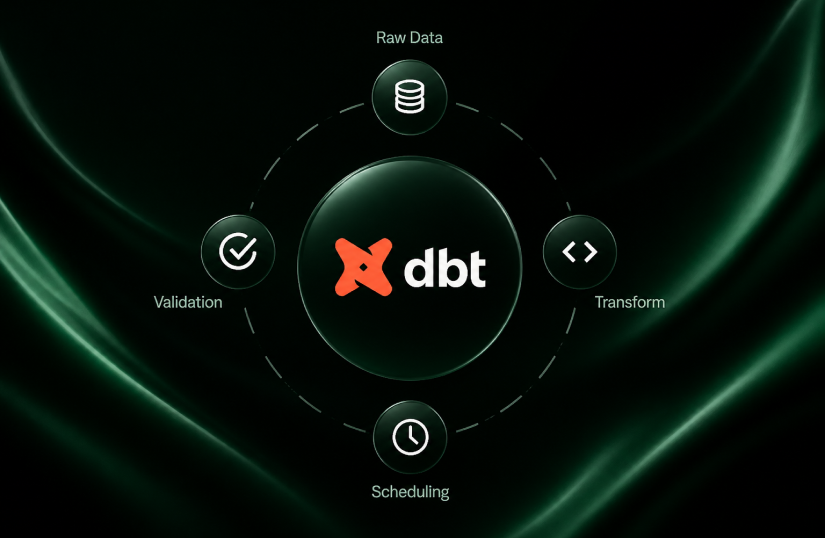
Organizations running Microsoft Fabric for analytics and data warehousing often need a structured way to manage SQL transformations across environments. dbt (Data Build Tool) brings version control, testing, modularity, and documentation to SQL workflows. With the introduction of native dbt Jobs in Microsoft Fabric (currently in preview), teams can now run dbt transformations directly inside a Fabric workspace, with built-in scheduling, monitoring, and pipeline orchestration. No external tooling required.
This article walks through a complete end-to-end setup: configuring a dbt Job in Microsoft Fabric, importing a project, running models across a Bronze-Silver-Gold architecture, monitoring results, and scheduling automated execution.
Why dbt Jobs in Microsoft Fabric Matter for Data Engineering Teams
Microsoft Fabric provides a unified analytics platform for data engineering, data warehousing, and business intelligence. For SQL-based transformation workflows, organizations often need a framework that adds version control, testing, and documentation to their pipelines. dbt enables analytics engineers and data engineers to build modular SQL transformations, apply software engineering best practices, and orchestrate data transformation workflows at scale.
When integrated with Microsoft Fabric, dbt helps teams develop reliable ELT pipelines while leveraging Fabric’s scalable compute and storage capabilities. With native dbt Jobs (currently in preview), the entire workflow runs inside the Fabric workspace.
This article demonstrates how to configure and execute a dbt Job in Microsoft Fabric, from project setup to automated execution.
Prerequisites for dbt Jobs in Microsoft Fabric
- Tenant setting enabled: An admin must turn on dbt jobs (preview) in the Fabric admin portal under Tenant settings (for the whole organization or specific security groups).
- A Fabric tenant and workspace: An active Fabric subscription and a Fabric-enabled workspace.
- A target data store: A supported warehouse or database, for example a Fabric Data Warehouse.
- Permissions and access: Contributor role or higher in the workspace to create and manage dbt jobs. Read/write permissions on the target Fabric Data Warehouse to run transformations. Build and read/write access to linked datasets and connections.
- Supported adapter: The source must use one of the currently supported adapters (see table below).
| Adapter | Adapter Version |
| Azure SQL Database | 1.8.5 |
| Fabric Data Warehouse | 1.9.0 |
| PostgreSQL Database | 1.9.0 |
| Snowflake | 1.9.0 |
Demo Architecture: Bronze, Silver, and Gold Layers in Microsoft Fabric
This demo assumes the following items are already in place:
- A workspace named “dbt_job_demo”
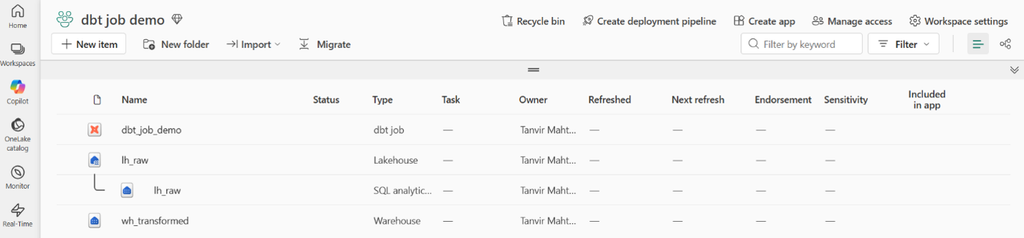
- A lakehouse named “lh_raw” having a schema called “bronze”. This bronze schema contains tables of raw data.
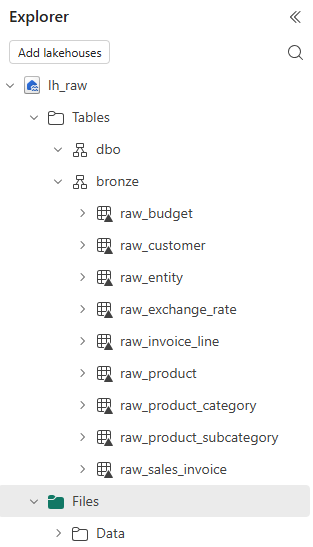
- A warehouse named “wh_transformed” that contains following two schemas.
- Silver: Will Contain transformed data (will be transformed by dbt)
- Gold: Layer for downstream consumption. Will contains the transformed data got from the silver layer.
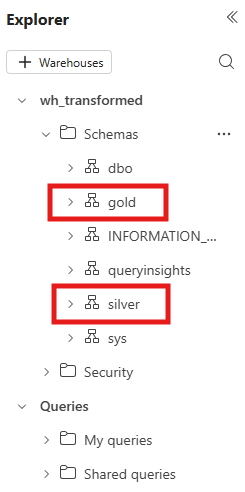
The objective is to take raw data from the bronze schema of the “lh_raw” lakehouse, transform it using dbt, and write the results into the silver schema of the “wh_transformed” warehouse. The gold schema then reads from the silver layer for downstream analytics.
Setting Up a dbt Job Project in Microsoft Fabric
Setting up a dbt job project in Microsoft Fabric is straightforward. The Fabric workspace provides a guided, low-code setup experience.
Create a dbt job
To create a dbt job, we need to go to the “New item” from the workspace and search for “dbt job”.
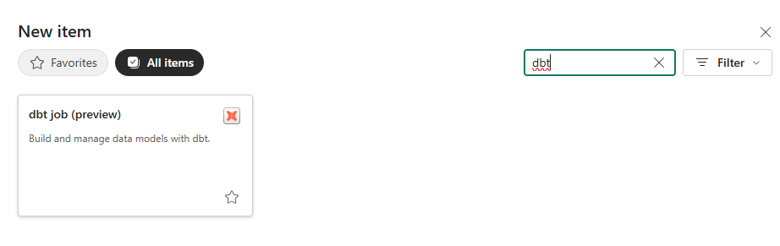
After clicking the tile for the dbt job item, a window will appear where we need to input the name of the job.
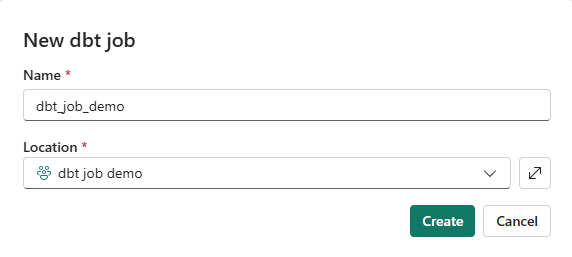
By clicking the “Create” button, a dbt job with the given name will be created.
It will then prompt us to configure the adapter settings.

We need to click the “Configure adapter settings” button which will take us to the following window.
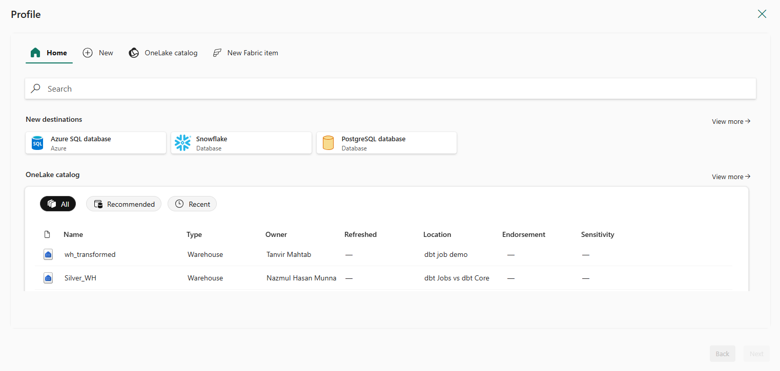
From here, we have to add a data store for the profile. Currently, following are the supported data stores.
- Fabric Data Warehouse
- Azure SQL Database
- PostgreSQL Database
- Snowflake
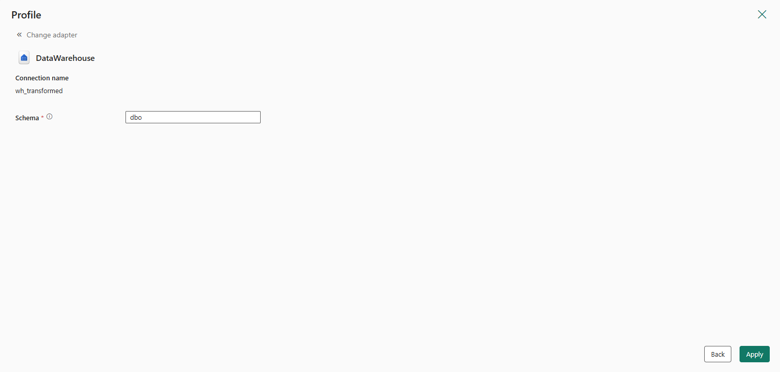
We already have “wh_transformed” warehouse created, and we are going to add that one here. After selecting the warehouse, we will click the “Next” button. This will take us to a new window, where we will be prompted to specify a schema and click the “Apply” button.
Create dbt Project
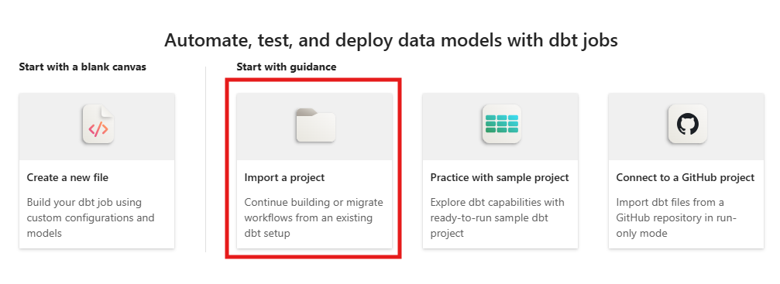
Next, we need to have a dbt project in the newly created dbt job. There are multiple options for this like-
- Start with a blank canvas
- Import a project
- Practice with sample project
- Connect to a GitHub project
In this demo, we will go for the “Import a project” option. That means we are going to import a locally created dbt project. (Note: we need to import the project folder as a compressed file).
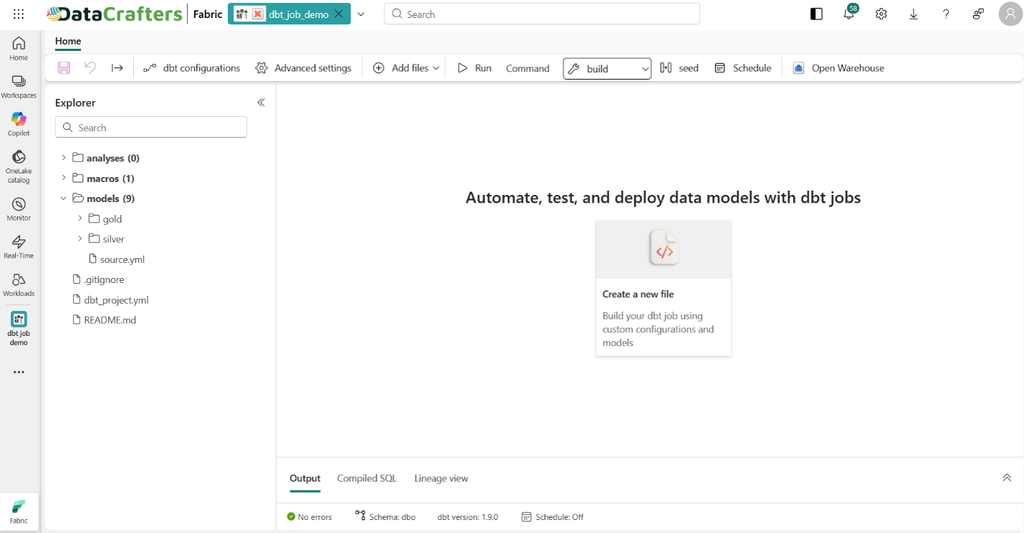
After the import is done, we will be able to see and navigate through all the project items from the explorer section. The entire window will look like the following.
Running dbt Models in Microsoft Fabric
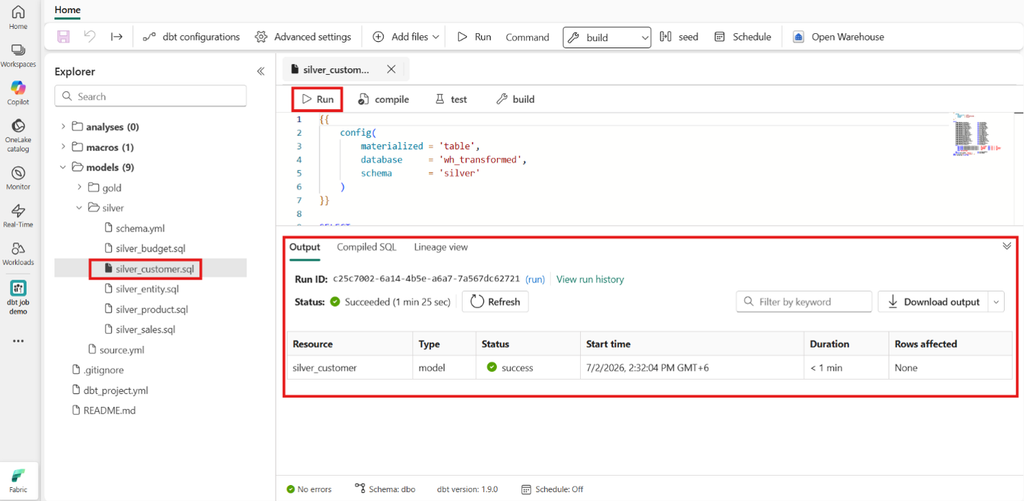
With the project imported, the dbt models are ready to run. Individual models can be run by selecting the model and clicking the “Run” button. All models can also be run at once (first select “build”, then “run”). Both options are shown below.
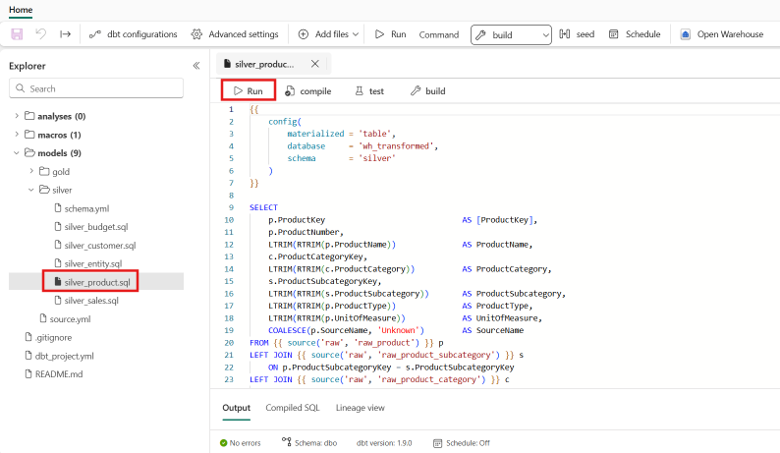
Figure: Running a single model
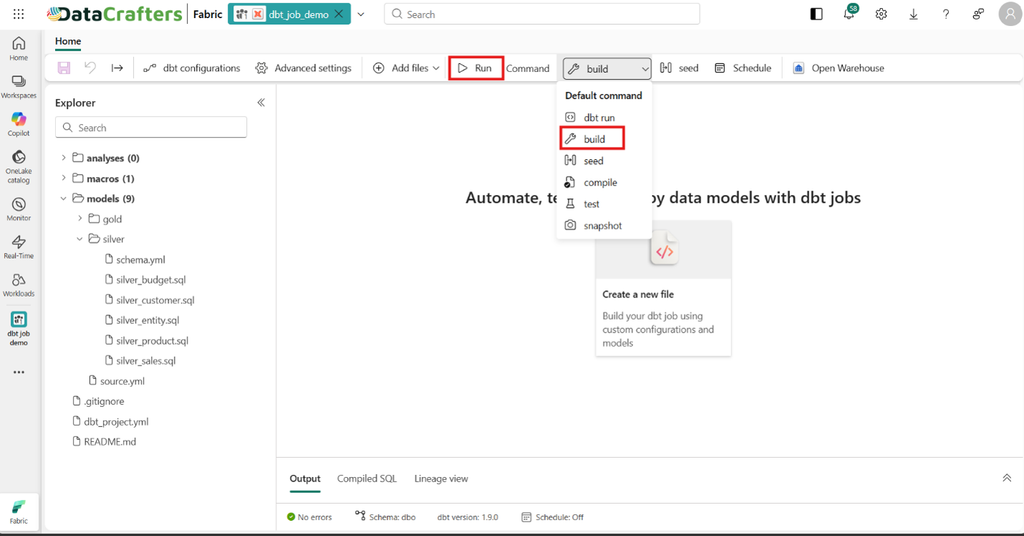
Figure: Running all the models at a time
Monitoring dbt Job Results: Output, Compiled SQL, and Lineage
The results panel at the bottom of the dbt job page provides three key views for monitoring and validation.
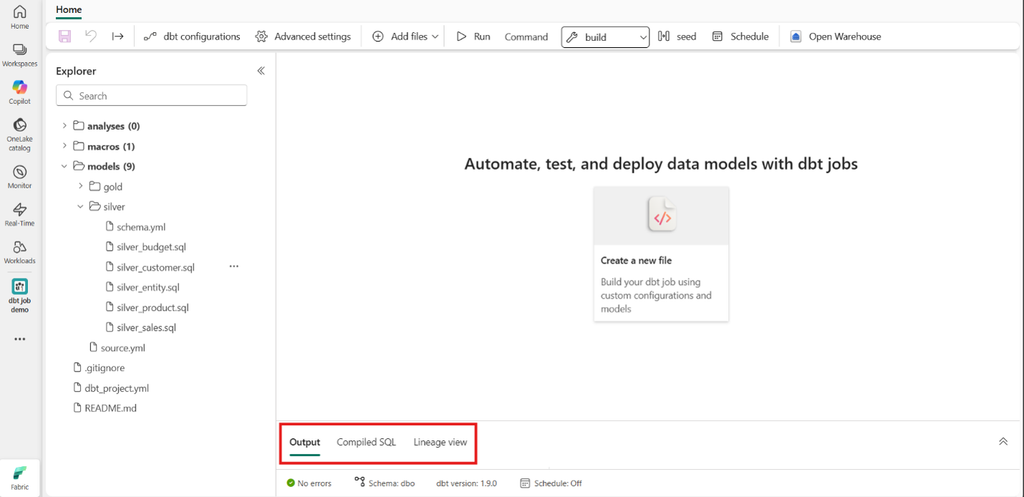
Output
Here, we can see the model’s run status.
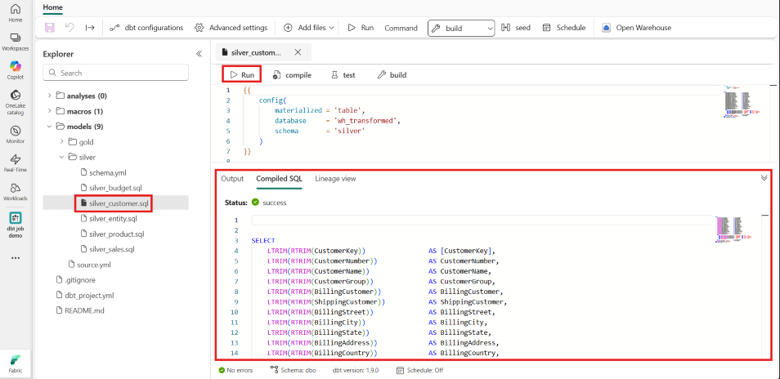
Compiled SQL
The compiled SQL of a model will be available here.
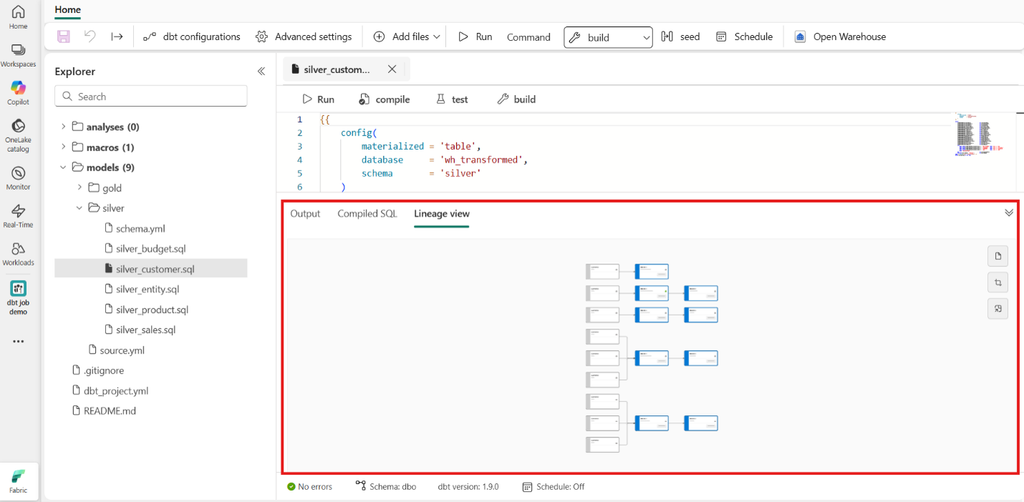
Lineage View
From here, we can see the lineage view of our dbt project.
Validate Data from the Destination
We can validate if the transformations have been done properly and the data landed on the destination accordingly, from the destination warehouse.
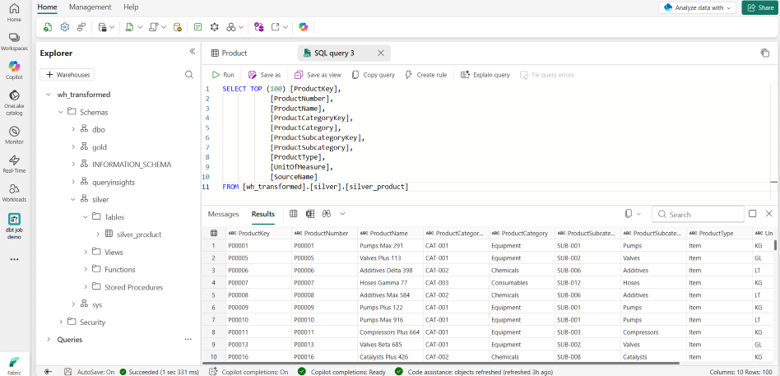
Figure: Data in the silver layer
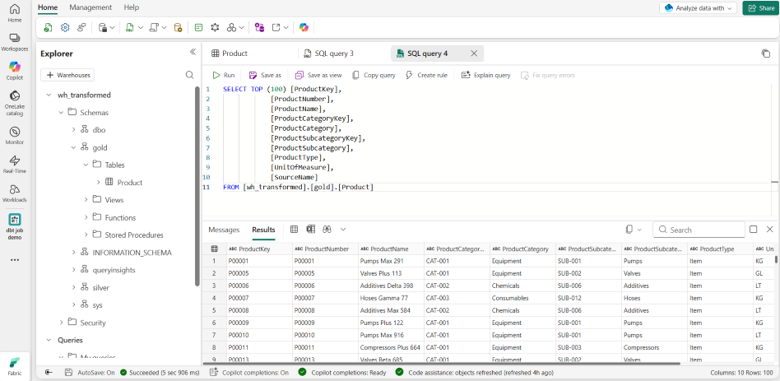
Figure: Data in the gold layer
Scheduling dbt Jobs for Automated Execution in Microsoft Fabric
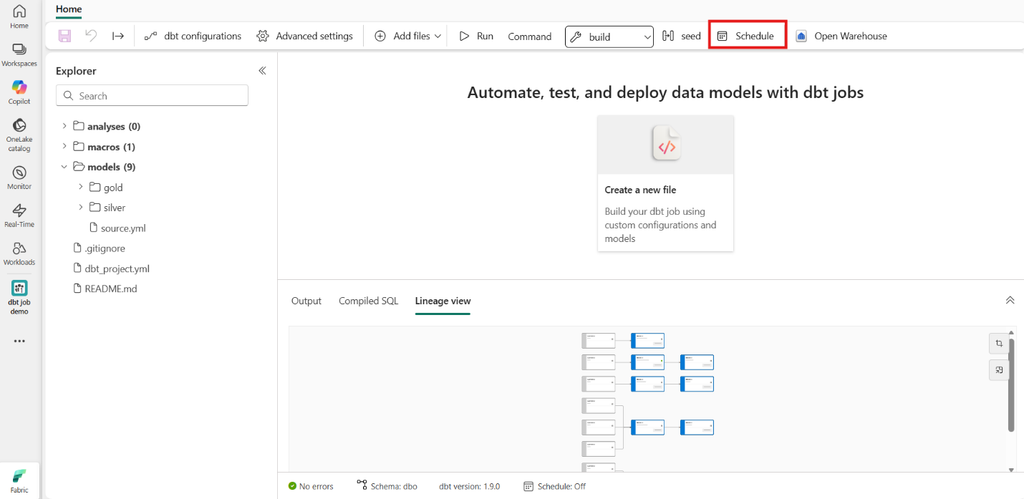
dbt jobs can be scheduled directly from the Fabric interface. Click the “Schedule” button from the menu bar.
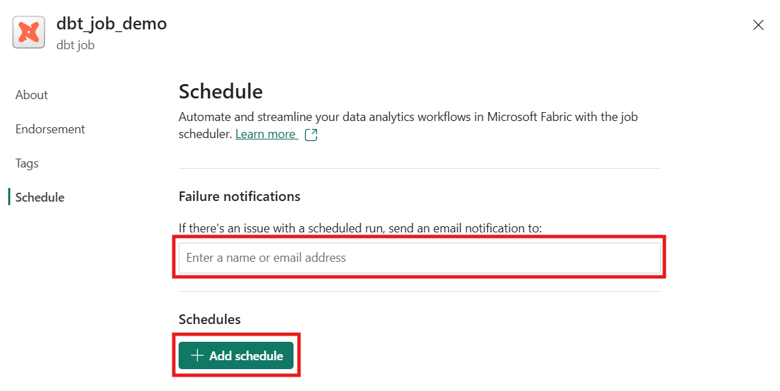
A window will appear where we need to click the “+Add schedule” button. Optionally, we can add some email accounts here so that an email is sent in case of any failure.
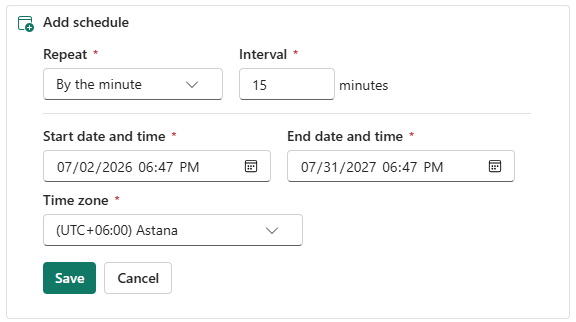
Each schedule supports time zone selection and custom repetition intervals.
Why dbt Jobs in Fabric Work for Enterprise Data Teams
- Built-in development environment: Build, test, and deploy dbt models directly in the Fabric web experience. The entire workflow runs inside the workspace.
- Guided, low-code setup for onboarding and configuration.
- Native scheduling and monitoring for reliable, transparent workflows.
- Visual insights into dbt runs, tests, and lineage, available in the same workspace as pipelines and reports.
- Managed, versioned runtime: Consistent, secure execution environment maintained by Fabric.
- Enterprise-grade security and governance built into Fabric.
- Pipeline orchestration: Run a dbt job as a pipeline activity, chain it with other activities (success/failure/completion), pass dynamic runtime parameters for metadata-driven pipelines, and trigger Teams or email notifications.
- GitHub support: Run dbt projects sourced from a GitHub repository.
- Full, untruncated logs in OneLake: Complete run logs (errors, warnings, debug) stored in OneLake, removing the previous 1 MB download limit.
Preview Status and Known Constraints
- Build caching not yet available: The preview compiles and executes a project fresh from source. dbt artifacts from previous runs are not reused for recompilation.
- Adapter constraints: Some partner adapters are not yet supported in Fabric.
- GitHub projects are run-only: dbt projects connected via GitHub can be executed but cannot be authored or modified in the Fabric UI.
- 10 MB UI rendering limit: Lineage views and output tables render up to 10 MB. Larger results must be viewed via the full logs in OneLake (using dbt-output-<run_id>.json).
- Preview status: The feature is in preview, so behavior, versions, and supported capabilities are still evolving.
Getting Started with dbt Jobs in Microsoft Fabric
Microsoft Fabric and dbt together provide a scalable and maintainable approach to building ELT pipelines. By leveraging dbt Jobs, organizations can automate data transformations, improve data quality through testing, and deliver trusted datasets for downstream analytics. As the feature moves from preview toward general availability, the capabilities and supported adapters will continue to expand.
If you are building transformation pipelines in Microsoft Fabric, evaluating dbt for enterprise data workflows, or designing a Bronze-Silver-Gold architecture with automated testing and version control, Data Crafters can help. We work with data engineering and analytics teams to design and implement production-grade Fabric environments.