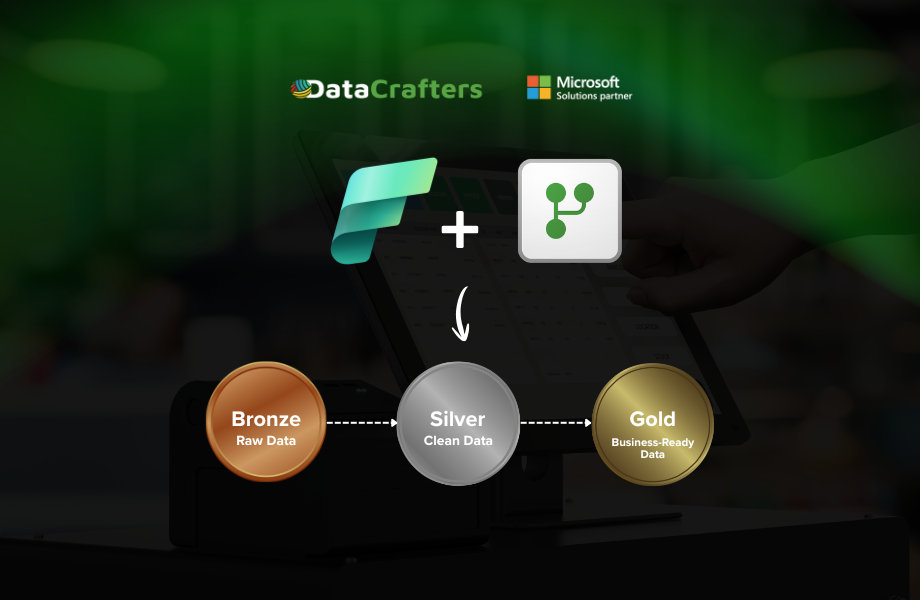
Why Staging Configuration Drives Cost and Performance
A Dataflow Gen1 processing 140 million rows can take 2.5 to 3.5 hours for what should be a straightforward filter. Complex transformations may time out entirely. Capacity usage can spike past 1000% overage, throttling other workloads across the tenant for hours.
Run the same 140 million rows through a properly configured Dataflow Gen2 with a deliberate staging strategy and the result can drop to 2.5 to 3.5 minutes. Capacity usage stays far more predictable and easier to manage.
The difference is not the engine alone. It comes down to how staging is configured at each Medallion layer. Many teams apply one default across all queries, either staging enabled everywhere or staging disabled everywhere. In practice, both choices create avoidable cost or performance issues. Bronze, Silver, and Gold serve different purposes and behave differently, so each layer benefits from its own staging approach.
This article walks through the staging configuration patterns for Bronze, Silver, and Gold, including M code examples, configuration tables, and the scenarios where exceptions make sense. By the end, you will have a clear decision checklist you can keep handy during pipeline design and review.
Core Principle: Staging Is a Per Layer Decision
Each Medallion layer behaves differently, so staging should be configured differently by layer. Bronze prioritizes speed, and staging usually adds overhead you do not need. Silver prioritizes transformation, and staging can offload heavy, non foldable work to the Warehouse engine. Gold prioritizes aggregations and business logic, and staging is required for Warehouse destinations while also supporting complex calculations. When this mapping is configured correctly, dataflows run faster and capacity usage becomes more predictable.
How Staging Works in Dataflow Gen2
When you create your first Dataflow Gen2 in a workspace, Fabric automatically provisions two hidden artifacts:
- A Staging Lakehouse (stores data being ingested)
- A Staging Warehouse (acts as a SQL compute engine to transform and write results faster).
When staging is enabled, data lands in the Lakehouse first, then the Warehouse’s SQL engine handles transformations that can be expressed as SQL filters, joins, aggregations before writing to your destination. When staging is disabled, the Mashup Engine does everything in-memory.
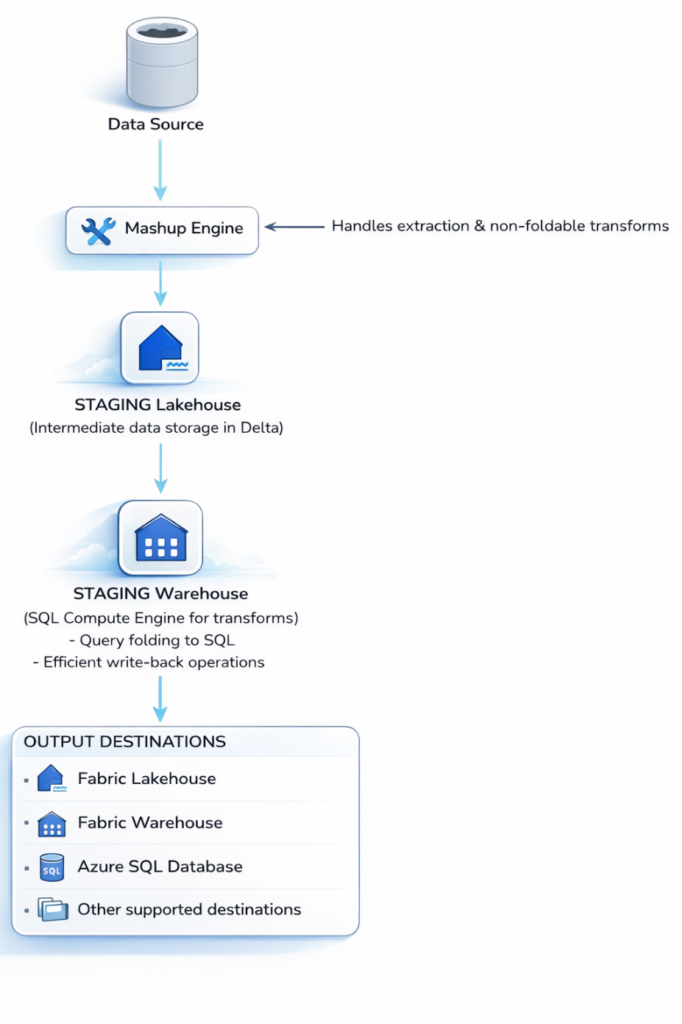
Figure 3: Staging Architecture
Dataflow Gen2 Staging Architecture Explained
When staging is ENABLED:
Data flows through the Staging Lakehouse first, then the Staging Warehouse applies transformations using its SQL compute engine and finally writes to the destination. This leverages powerful SQL-based processing for complex operations.
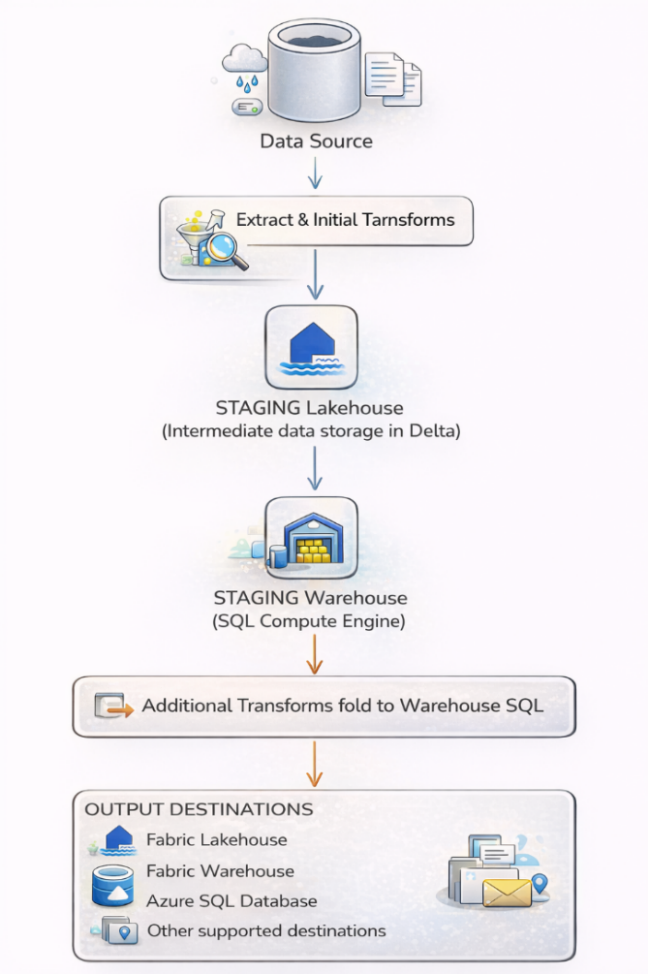
Figure 3.1.1: Enable Staging
When staging is DISABLED:
The Mashup Engine handles everything in-memory, extracting data, applying transformations, and writing directly to the destination. This can be faster for simple operations but struggles with large volumes.
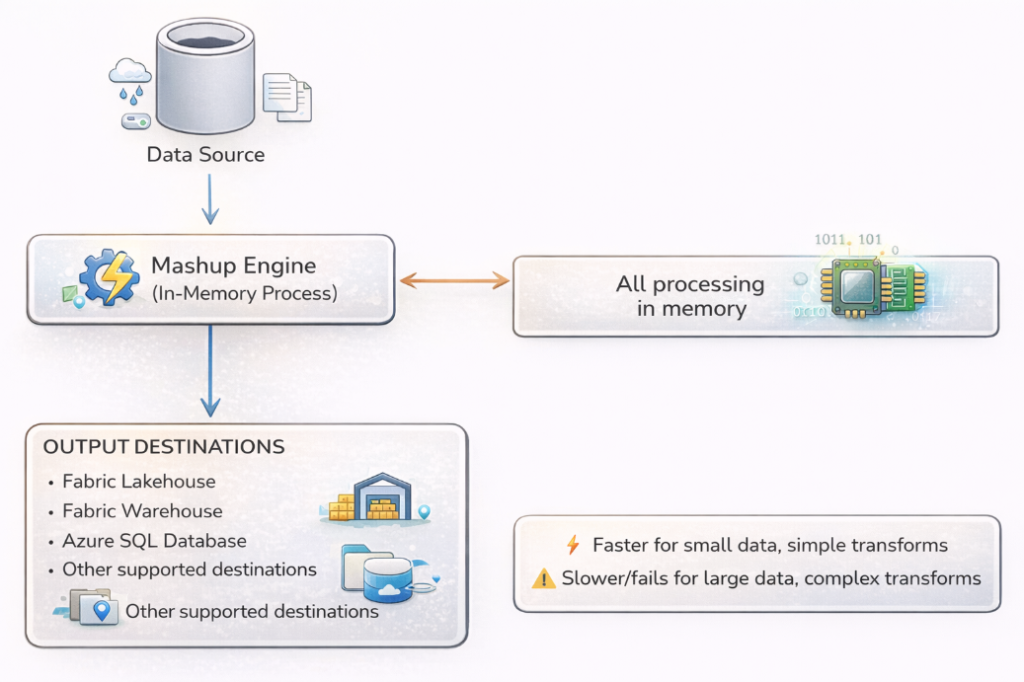
Figure 3.1.2: Disable Staging
When Transformations Fold to the Staging Warehouse
If your staged data undergoes transformations that can be expressed as SQL (filters, joins, aggregations), the Warehouse compute processes them natively, much faster than in-memory processing. Think of staging as a “pit stop” for your data. Before your data reaches its final destination, it pauses at a staging area where transformations can be performed more efficiently. This is particularly powerful when:
- Your data source doesn’t support Query Folding
- Transformations are too complex to be pushed down to the source system
- You’re performing merges or joins across multiple data sources
- Downstream queries need to reference the same transformed dataset
| Power Query Step | Folded SQL Equivalent |
| Get table “Orders” | SELECT * |
| Filter: Year = 2024 | WHERE Year = 2024 |
| Select columns: A, B, C | SELECT A, B, C |
| Sort by Date | ORDER BY Date |
Result: a single SQL query sent to the source with minimal data transfer.
| Scenario | Query Folding | Staging Recommendation |
| All transformations fold to source | ✅ Full folding | ❌ Disable staging (adds overhead) |
| Some fold, some don’t | ⚠️ Partial folding | ✅ Split query & enable staging on non-folding part |
| No transformations fold | ❌ No folding | ✅ Enable staging (leverage Warehouse compute) |
| Merging from multiple sources | ❌ Cannot fold | ✅ Enable staging (both sources staged first) |
How to Read Folding Indicators in Dataflow Gen2
Dataflow Gen2 provides visual indicators in the Power Query editor:
- Green indicator (solid line): Step folds to source/staging compute.
- Gray indicator (dashed line): Step does NOT fold, processed in-memory by the Mashup engine.
- Folding boundary: The point where folding stops. When you see it turn gray, that’s your signal to consider splitting the query.
When you see the folding indicator turn gray, that’s your signal to consider splitting the query and enabling staging on the portion before the break.
When to Enable or Disable Staging in Microsoft Fabric
Understanding when to enable or disable staging is crucial for optimal performance. This isn’t a one-size-fits-all decision. It depends on your data volume, transformation complexity, and destination type.
When Staging Improves Performance (Enable Staging ✅)
Large Data Volumes
When processing millions of rows, staging allows the Warehouse SQL compute to handle the heavy lifting instead of the memory-constrained Mashup engine.
Real-world example: Processing 29 million records from 50 CSV files, with staging and Partitioned Compute, this can complete in 6-7 minutes instead of 1+ hours.
Complex Transformations That Don’t Fold
Operations like:
- Custom M functions
- Complex conditional logic
- Text parsing with multiple steps
- Pivot/Unpivot operations
- Advanced date calculations
These don’t fold to source systems but CAN fold to the Staging Warehouse SQL compute.
Merges and Joins Across Multiple Sources
When combining data from different sources (e.g., D365 F&O transactions with SharePoint reference data):
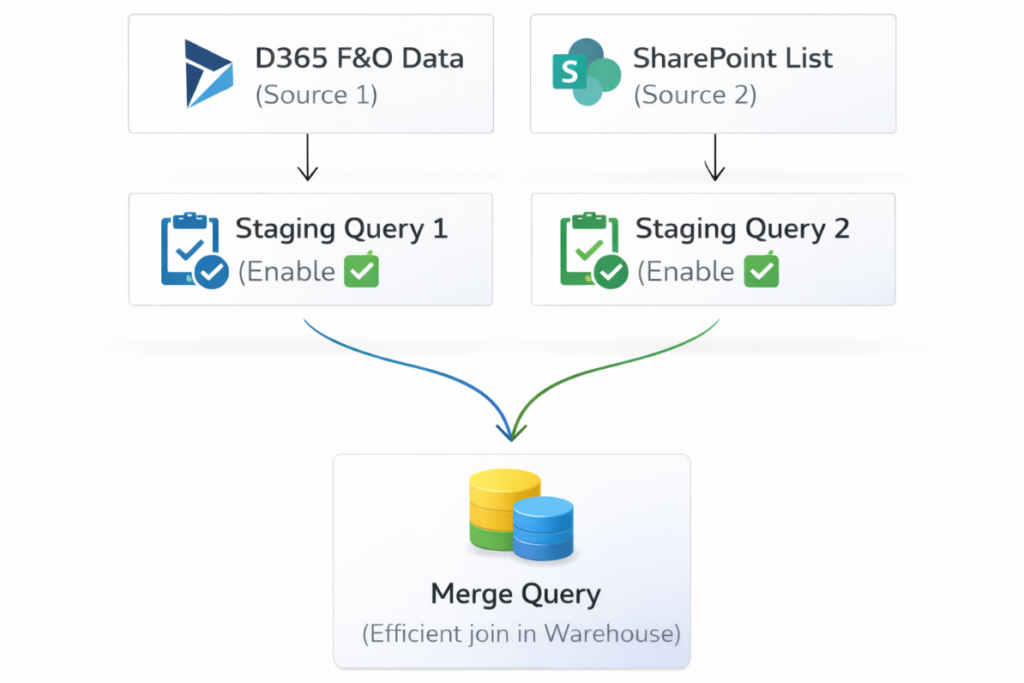
Figure 4.1.3: Merges and Joins Across Multiple Sources
Queries Referenced by Multiple Downstream Queries
If Query A is referenced by Query B, Query C, and Query D the staging Query A means it’s computed once and reused, not recomputed three times.
High Scale Compute Requirements
Staging enables access to the High Scale Compute infrastructure, necessary for:
- Temporal consistency across downstream dataflows
- Data reconciliation processes
- Reduced load on source systems
When Staging Adds Overhead (Disable Staging ❌)
Small Data Volumes
For tables with less than 100,000 rows and simple transformations, staging adds unnecessary overhead:
- Write to staging lakehouse (time cost)
- Read from staging lakehouse (time cost)
- Warehouse compute spin-up (time cost)
The direct in-memory path is faster for small data.
Simple Extract-Load Operations
If you’re simply copying data from source to destination with minimal transformation:
- Column selection
- Basic data type changes
- Simple filters that fold to source
Disable staging and let Fast Copy handle it.
Queries Not Referenced by Other Queries
If a query is standalone (not referenced by other queries) and loads directly to destination, evaluate if staging provides benefit for your specific transformation pattern.
When Experiencing Capacity Overage Issues
Staging consumes additional Capacity Units (CU). If you’re hitting capacity limits:
- Each second of Warehouse compute uses 6 CU seconds
- Staging Lakehouse operations consume additional CU
- For F64 SKUs with heavy workloads, staging can push usage over 1000%
Consider disabling staging on less critical dataflows to manage capacity.
Bronze Layer Staging Strategy: Disable Staging and Use Fast Copy
Layer Objective:
Land raw data from source systems as quickly as possible while preserving original structure and fidelity. The Bronze layer is about speed and preservation.
Why Staging Hurts at Bronze:
Bronze queries typically involve minimal transformation: column selection, basic filters, data type inference. These operations are lightweight enough that the Mashup engine handles them efficiently. More importantly, when your source is a SQL database or D365 F&O, these operations almost always support query folding, the transformation steps translate into a native SQL query executed at the source. The source does the heavy lifting; only the filtered result travels across the wire.
Enabling staging on a Bronze query adds an unnecessary intermediate write to the Staging Lakehouse followed by a read, before data reaches your actual destination. For a 50-million-row table with basic column selection, this overhead can add 40–60% to refresh time with zero benefit.
Bronze Layer Architecture:
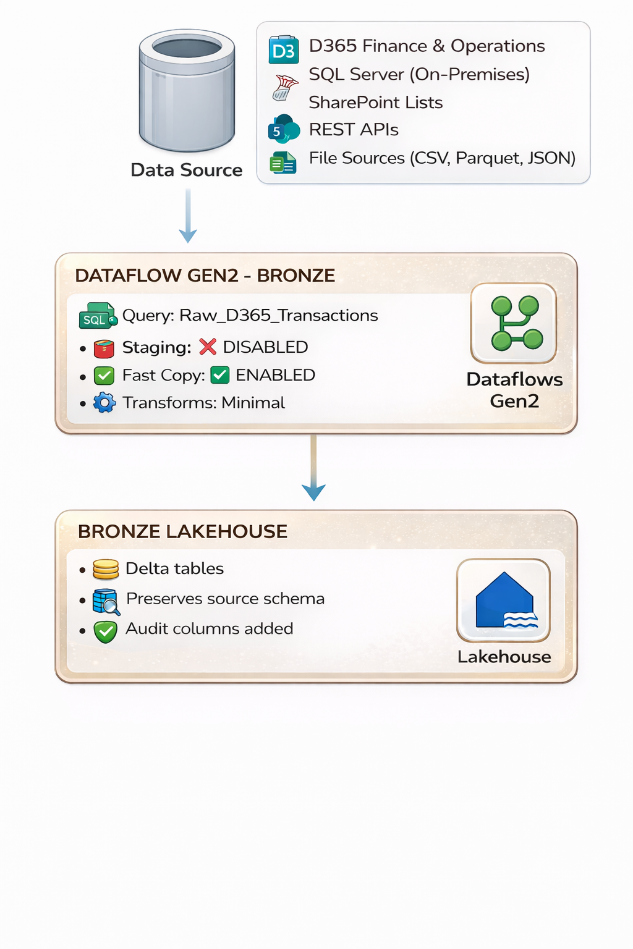
Figure 5.3: Bronze Layer Architecture
Best Practices for Bronze Layer:
For Bronze ingestion of large volumes, use Fast Copy instead of staging. Fast Copy leverages the same high-throughput CopyActivity backend as Data Pipelines, bypassing the Mashup engine entirely. It provides up to 9x faster performance by optimizing data movement paths and parallelizing writes. Fast Copy supports Lakehouse destinations with CSV and Parquet file formats.
To enable Fast Copy: go to Options > Scale > Allow use of enhanced connector for copy, then enable staging on the query (Fast Copy requires staging as its delivery mechanism). For guaranteed Fast Copy behavior, right-click the query and select Require Fast Copy, this will fail the dataflow explicitly if the query contains unsupported transformations.
- Enable Fast Copy: Use this feature for bulk ingestion. It provides up to 9x faster performance by optimizing data movement paths and parallelizing writes.
- Leverage Query Folding to Source: Let the source system handle filtering:
/ Good: Filter folds to D365/SQL source
Table.SelectRows(Source, each [TRANSDATE] >= #date(2024,1,1))


// Good: Column selection folds
Table.SelectColumns(Source,{"OrderID", "CustomerID", "Amount", "Date"})
A complete Bronze extraction query:
let
    Source = Sql.Database("your-server.database.windows.net", "SalesDB"),
    dbo_Orders = Source{[Schema="dbo", Item="Orders"]}[Data],


    // Both steps fold to T-SQL at the source
    FilteredRows = Table.SelectRows(
        dbo_Orders,
        each [ModifiedDate] >= #date(2024, 1, 1)
    ),
    SelectedColumns = Table.SelectColumns(
        FilteredRows,
        {"OrderID", "CustomerID", "OrderDate", "TotalAmount", "ModifiedDate"}
    )
in
    SelectedColumns
Configuration:
| Setting | Value | Why |
| Enable Staging | ❌ No | Overhead exceeds benefit for simple extract-load patterns |
| Fast Copy | ✅ Yes | Leverages CopyActivity engine for up to 9x faster ingestion |
| Query Folding | Maximize | Push filters and column selection to source via native SQL |
| Modern Evaluator | ✅ Yes | Provides incremental gains even on simple queries |
| Partitioned Compute | ⚠️ If applicable | Only for 50+ partitioned file scenarios |
| Destination | Bronze Lakehouse → Tables | Delta tables preserve raw data fidelity |
Bronze Exceptions: When to Enable Staging
There is specific Bronze scenarios where staging helps:
| Scenario | Enable Staging? | Reason |
| Combining 50+ partitioned files | ✅ Yes | Partitioned Compute requires staging to parallelize |
| Source doesn’t support any folding | ✅ Yes | Leverage Warehouse compute instead of Mashup engine |
| Need temporal consistency for downstream | ✅ Yes | Ensures point-in-time snapshot |
| Simple extract from foldable source | ❌ No | Direct path is faster |
Silver Layer Staging Strategy: Enable Staging for Cleansing and Validation
Layer Objective:
Transform raw Bronze data into cleansed, validated, deduplicated, enterprise-ready datasets. The Silver layer is where the heavy lifting occurs, data cleansing, validation, standardization, deduplication, and merging data from multiple Bronze sources. These operations typically do not fold to source systems, making staging highly beneficial.
Silver Layer Architecture:
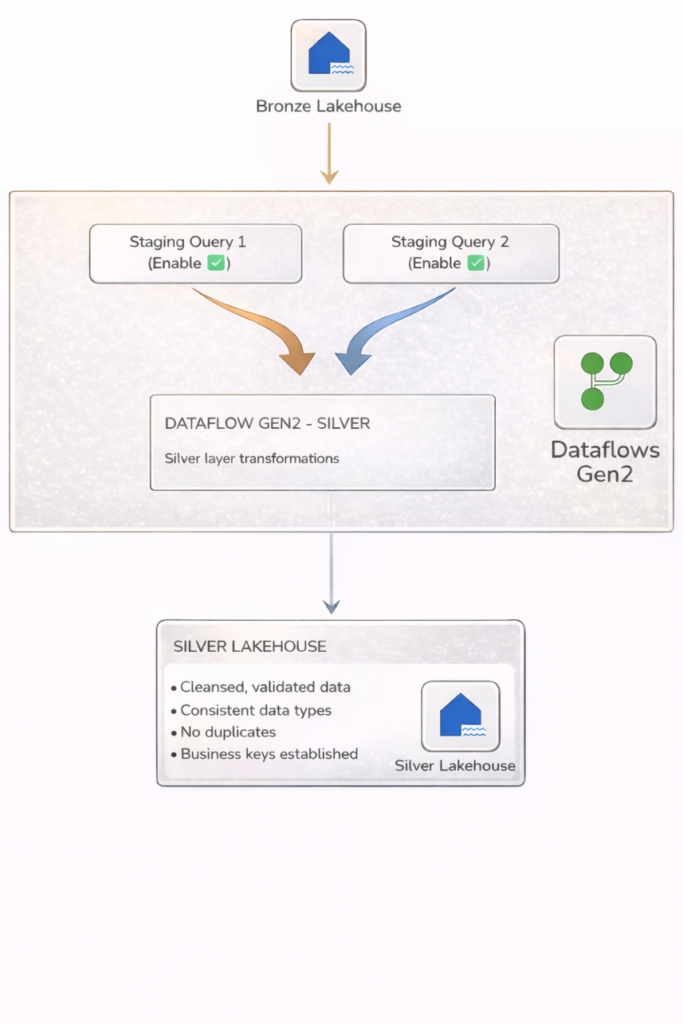
Figure 6.2: Silver Layer Architecture
Why Staging Helps at Silver:
Silver transformations like Table.NestedJoin, Table.Group, custom M functions, complex conditional logic, text parsing, and pivot/unpivot operations typically cannot fold to the source. Without staging, the Mashup engine must pull all data into memory, perform the operation locally, and write to destination. For tables over 100,000 rows, this becomes a bottleneck, or a timeout.
With staging enabled, data lands in the Staging Lakehouse first, then the Staging Warehouse’s SQL engine takes over. Joins and aggregations execute using distributed SQL compute. Transformations that took 45 minutes in the Mashup engine can finish in under 5 minutes through the Warehouse.
Best Practices for Silver Layer:
- Enable Staging on Bronze Source Queries: When reading from Bronze Lakehouse, stage the data first so transformations can leverage Warehouse compute.
- Use “Extract Previous” for Non-Folding Steps: When you identify a step that breaks folding:
- Right-click on the step
- Select “Extract Previous”
- Name the new query (e.g., Stg_Transactions_Raw)
- Enable staging on the extracted query
- Continue transformations in the main query
- Stage Both Sides of Merge Operations: Before joining tables, ensure both source queries are staged for efficient merge execution.
- Apply Modern Evaluator: For Silver transformations on large datasets, enable Modern Evaluator for ~1.6x performance improvement on non-foldable queries.
M Code: Staged Merge Across Two Bronze Sources
When combining data from different sources (e.g., D365 F&O transactions with customer reference data), stage both sides before merging.
Step 1: Staging query for orders (Enable Staging = ON):
// Query: Stg_Bronze_Orders (Enable Staging = ON)
let
    Source = Lakehouse.Contents(null){[workspaceId = "your-ws-id"]}[Data],
    Orders = Source{[Id = "Bronze_Orders", ItemKind = "Table"]}[Data],
    FilteredOrders = Table.SelectRows(
        Orders,
        each [OrderDate] >= #date(2024, 1, 1)
    ),
    SelectedCols = Table.SelectColumns(
        FilteredOrders,
        {"OrderID", "CustomerID", "OrderDate", "TotalAmount",
         "ProductCategory", "Region", "ModifiedDate"}
    )
in
    SelectedCols
Step 2: Staging query for customers (Enable Staging = ON):
/ Query: Stg_Bronze_Customers (Enable Staging = ON)
let
    Source = Lakehouse.Contents(null){[workspaceId = "your-ws-id"]}[Data],
    Customers = Source{[Id = "Bronze_Customers", ItemKind = "Table"]}[Data],
    SelectedCols = Table.SelectColumns(
        Customers,
        {"CustomerID", "CustomerName", "Region", "Segment"}
    )
in
    SelectedCols
Step 3: Silver transformation query (references staged data):
// Query: Silver_OrdersEnriched (destination = Silver Lakehouse)
let
    Orders = Stg_Bronze_Orders,
    Customers = Stg_Bronze_Customers,


    // This merge runs on Staging Warehouse SQL engine
    Merged = Table.NestedJoin(
        Orders, {"CustomerID"},
        Customers, {"CustomerID"},
        "CustDetails", JoinKind.LeftOuter
    ),
    Expanded = Table.ExpandTableColumn(
        Merged, "CustDetails",
        {"CustomerName", "Segment"}
    ),


    // Standardize nulls
    CleanedRegion = Table.ReplaceValue(
        Expanded, null, "Unknown",
        Replacer.ReplaceValue, {"Region"}
    ),


    // Deduplicate: keep latest by ModifiedDate
    Sorted = Table.Sort(CleanedRegion, {{"ModifiedDate", Order.Descending}}),
    Deduped = Table.Distinct(Sorted, {"OrderID"})
in
    Deduped
Modern Evaluator in Dataflow Gen2: Silver Layer Optimization
The Modern Query Evaluation Engine (preview) is particularly effective at the Silver layer. Running on .NET Core 8, it delivers approximately 1.6x faster transformation speed for non-foldable queries. In independent benchmarks, enabling the Modern Evaluator reduced CU consumption by over 50% compared to Gen1 dataflows processing 29 million rows.
Enable it via Options > Scale > Allow use of the modern query evaluation engine. It currently supports connectors including ADLS Gen2, Fabric Lakehouse, Fabric Warehouse, OData, SharePoint, and Web. Unsupported connectors fall back to the standard engine automatically.
Configuration:
| Setting | Value | Why |
| Enable Staging | ✅ Yes | Non-foldable transforms benefit from Warehouse SQL compute |
| Fast Copy | ❌ No | Not applicable. Silver involves heavy transformations |
| Extract Previous | Use it | Split foldable from non-foldable steps at the folding boundary |
| Modern Evaluator | ✅ Yes | ~1.6x faster for non-foldable queries, 50%+ CU savings |
| Partitioned Compute | ⚠️ If applicable | Rare at Silver unless processing partitioned file sets |
| Destination | Silver Lakehouse → Tables | Delta tables for enriched, deduplicated data |
Gold Layer Staging Strategy: Enable Staging for Aggregations and KPIs
Layer Objective:
Create aggregated, enriched, business-ready datasets optimized for reporting, analytics, and consumption by Power BI semantic models. Gold layer transformations involve complex aggregations, business calculations, KPI computations, and dimensional modeling. These operations rarely fold to original sources, benefit significantly from staged intermediate results, and often load to a Warehouse destination where staging is mandatory.
Gold Layer Architecture:
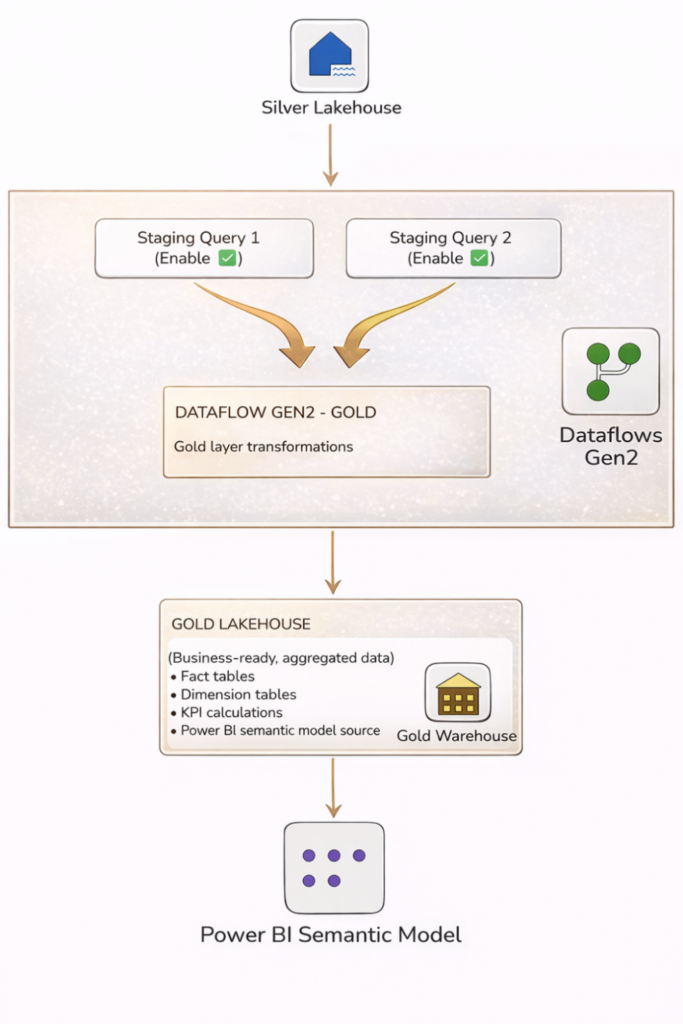
Figure 7.2: Gold Layer Architecture
Why Staging Is Required for Gold Warehouse Destinations
If your Gold destination is a Fabric Warehouse (the recommended choice for structured analytical data), staging cannot be disabled which is architecturally required. The Dataflow Gen2 engine uses the Staging Warehouse as the intermediary write path to Warehouse destinations.
Even when loading to a Lakehouse, Gold queries benefit enormously from staging because aggregations (Table.Group), multi-table joins, and calculated columns are compute-intensive operations that the Staging Warehouse’s SQL engine handles far more efficiently than in-memory processing.
Partitioned Compute: Gold at Scale
For Gold queries that process large partitioned file sets (monthly CSVs, yearly Parquet archives), enable Partitioned Compute. This feature parallelizes processing across file partitions. Microsoft’s benchmark showed:
- Without Partitioned Compute: 1 hour 44 minutes
- With Partitioned Compute: 6 minutes 51 seconds (15x faster)
- With Partitioned Compute + Modern Evaluator: 22x faster processing
Enable it via Options > Scale > Allow use of partitioned compute. Currently supports ADLS Gen2, Fabric Lakehouse, Folder, and Azure Blob Storage connectors. You must also enable Allow combining data from multiple sources in the Privacy section, and staging must be enabled on the query.
M Code: Gold KPI Aggregation
This Gold query aggregates Silver order data into a monthly revenue KPI table, grouped by region and product category:
// Query: Gold_MonthlyRevenue (Enable Staging = ON)
// Destination: Gold Warehouse
let
    Source = Stg_Silver_OrdersEnriched,
    // Add Month-Year key for time-based aggregation
    AddedMonthKey = Table.AddColumn(
        Source, "MonthKey",
        each Date.Year([OrderDate]) * 100 + Date.Month([OrderDate]),
        Int64.Type
    ),
    // Aggregate revenue by Region, Category, Month
    Grouped = Table.Group(
        AddedMonthKey,
        {"Region", "ProductCategory", "MonthKey"},
        {
            {"TotalRevenue", each List.Sum([TotalAmount]), type number},
            {"OrderCount", each Table.RowCount(_), Int64.Type},
            {"AvgOrderValue", each List.Average([TotalAmount]), type number}
        }
    ),


    // Sort for downstream consumption
    Sorted = Table.Sort(Grouped, {{"MonthKey", Order.Ascending}})
in
    Sorted
Best Practices for Gold Layer:
- Staging is Mandatory for Warehouse Destinations: You cannot disable it, so design your queries accordingly.
- Stage All Silver Source Queries: Before aggregating, ensure Silver data is staged for efficient processing.
- Use Partitioned Compute for Large Aggregations: When processing partitioned datasets, Partitioned Compute provides 15-22x faster performance.
- Consider Separate Dataflows for Complex Models: For dimensional models with many fact and dimension tables, split into focused dataflows to stay within the 50-query limit.
- Stage Intermediate Aggregations: If building complex KPIs requiring multiple calculation steps, stage intermediate results.
Configuration:
| Setting | Value | Why |
| Enable Staging | ✅ Yes (Mandatory) | Required for Warehouse destinations; aggregations need SQL compute |
| Fast Copy | ❌ No | Not applicable, Gold involves heavy aggregation logic |
| Partitioned Compute | ✅ Yes (if files) | 22x faster for partitioned file processing |
| Modern Evaluator | ✅ Yes | Faster execution for complex aggregation and business logic |
| Destination | Gold Warehouse | Optimized for Power BI DirectQuery and structured analytics |
Decision Flowchart: Choosing Staging Settings by Layer and Scenario
| Question | If Yes | If No | Feature to Enable |
| Is this raw ingestion (Bronze)? | Staging OFF | – | Fast Copy + Query Folding |
| Are transforms non-foldable? | Staging ON | Staging OFF | Extract Previous + Modern Evaluator |
| Is destination a Warehouse? | Staging ON (mandatory) | – | Required architecturally |
| Data volume under 100K rows? | Staging OFF | Staging ON | Mashup engine handles small data |
| Processing 50+ partitioned files? | Staging ON | – | Partitioned Compute |
| All transforms fold to source? | Staging OFF | Staging ON | Let the source do the work |
| CU budget under pressure? | Reduce staging | – | Schedule off-peak |
| More than 50 queries needed? | Split dataflows | — | Pipeline orchestration |
| Setting | Bronze | Silver | Gold |
| Enable Staging | ❌ OFF | ✅ ON | ✅ ON (mandatory) |
| Fast Copy | ✅ ON | ❌ OFF | ❌ OFF |
| Query Folding | Maximize | Partial (Extract Previous) | N/A (reads from staged) |
| Modern Evaluator | ✅ Yes | ✅ Yes | ✅ Yes |
| Partitioned Compute | Only for 50+ files | Rare | ✅ If file-based |
| Typical Destination | Lakehouse | Lakehouse | Warehouse |
| CU Impact | Low | Medium | High (offset by speed) |
Staging configuration is not a global setting you toggle once and forget. It is a per-query, per-layer decision that directly determines whether your dataflow runs in minutes or hours, and whether your capacity budget survives the month. Start with the layer defaults in the checklist above, verify with the folding indicators, and measure with the Capacity Metrics App.
Conclusion
Query staging in Microsoft Fabric Dataflows Gen2 is one of the highest impact levers for controlling performance and capacity. When you align staging choices with the Medallion Architecture, long running loads can drop from hours to minutes without creating unpredictable capacity spikes.
The key is to treat staging as a per layer decision. For the Bronze layer, keep staging disabled in most cases and rely on Fast Copy and query folding for fast raw ingestion, often delivering up to 9x improvement. For the Silver layer, enable staging on source and transformation queries so the Warehouse engine can handle cleansing, validation, and merge operations, with Modern Evaluator delivering an additional 1.6x improvement. For the Gold layer, staging is required for Warehouse destinations and remains the best option for heavy aggregations and business logic. For large datasets, Partitioned Compute can deliver up to 22x faster performance.
To make this pattern work reliably in production, validate folding behavior, respect the 50 query limit per dataflow, and keep related artifacts in the same workspace for simpler management and execution. With these practices in place, data engineers, Power BI developers, and solution architects can build enterprise grade pipelines that scale efficiently, control capacity consumption, and deliver timely insights to business stakeholders.