A waterfall answers one question: what took the total from here to there, and in what order? Each bar floats from where the last one ended, so the baseline carries the accumulation, and the bar length carries the step. That a number missing its target is where a review starts; which quarter took it there is where it goes next.
Its caveat is arithmetic rather than perceptual the cascade only adds up when the measure is additive, so a percentage measure draws a legible chart whose cumulative totals are not business figures. Power BI ships one waterfall, whose Breakdown well turns it into a period-to-period bridge. The Intelligence Sheet gathers it into a family waterfall, stacked, variance, a column or bar pairing, and two cascades side by side.
Both read from Power BI semantic models. The difference is context whether the bridge walks from a point that was set at the start of the period, or one that is still being revised. The running example is a reconciliation cut of the same sales data for Actual Sales by Calendar Year and Quarter; a $12.4bn total walked back to a $10.7bn Target and a $10.1bn PY Sales base.

Watch It in Action
Power BI Waterfall
Power BI ships the waterfall as a core visual, reading its measure straight from your Power BI semantic model: a category on the axis, a single measure in Y, and each column floating from the running total the one before it left. Increase, Decrease, Total, and Other are the four sentiment colors; a Show total toggle drops the closing column, and selecting a column cross-filters the page like any native visual.
Waterfall
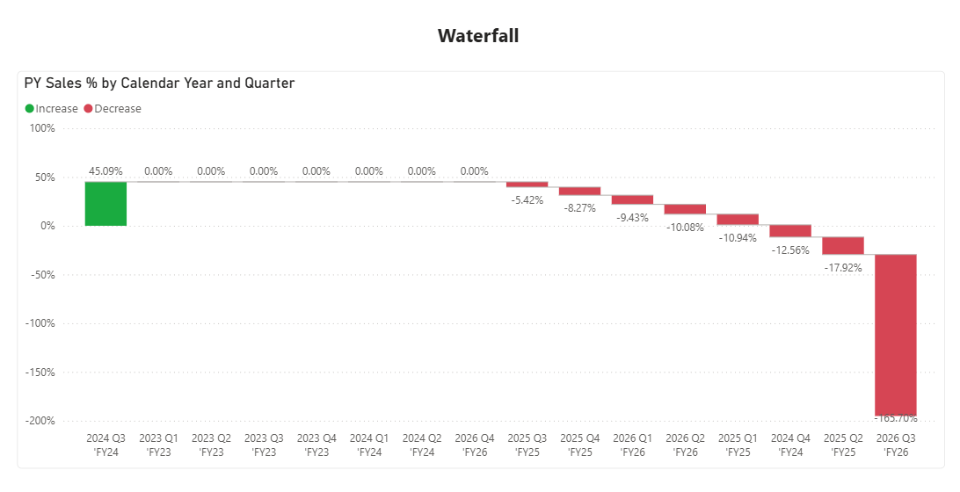
The Waterfall draws every step as a floating column whose length is the movement and whose color is the direction here PY Sales % by Calendar Year and Quarter, with a single increase, a run of flat quarters, and a tail of declines. The axis here is sorted by the measure, descending, so the periods do not read in calendar order; Power BI defaults to chronological order, and a sort of control puts it back. The structural limit is the one that matters more: the native waterfall treats a period axis as a single flat list, so the labels arrive with no year tier above them, and no year closes on a subtotal of its own. Its limit is the one every waterfall carries the steps must be additive to accumulate into anything, and where they are not, the reading stops at the step labels.
A note on native waterfalls
For a flat run of steps on one additive measure, the native waterfall is solid in a credibility case, not a gap, and the Breakdown well earns its place, splitting each period to move into its largest contributors with no DAX behind it. The edges show elsewhere. Drill on a category hierarchy is a header action that moves the whole chart between levels, so there are no in-chart subtotal bars and no per-node expand or collapse. A bridge from prior year to actual becomes a modelling exercise rather than a binding, and the core visuals expose no fill-pattern or outline property at all, so IBCS scenario notation cannot be expressed.
The Breakdown itself is worth setting deliberately rather than accepting. It shows the top five contributors per bar by default, ranked on absolute value, and pools everything else into a single other column with no drill path into it so a period whose movement came from a long tail of small territories reads as one undifferentiated block. Maximum breakdowns, on the Breakdown card of the Format pane, are the control that raises or lowers that count. Adding a breakdown also changes how the visual loads: the category axis switches to windowing thirty rows at a time, and the breakdown caps at the top 200 values, where a category-only waterfall runs to 3,500 points. Small multiples do not extend to the waterfall either. None of that makes native wrong for a straightforward bridge; it just marks where the Intelligence Sheet’s waterfall family reaches further.
Waterfall Charts in the Intelligence Sheet
The Intelligence Sheet reads from the same Power BI semantic models your existing reports use and builds this family on top of them from one foundation in a category and one or two measures. Every variant below puts the reporting calendar on the axis: quarter steps, a bold year subtotal bar with a collapse toggle on the node, and a closing total. The wells are named for the work of a Category, an Actual(s) measure, and Comparison 1 to 3 for prior year; plan and forecast and orientation is a rotate control rather than a separate chart type.
Waterfall
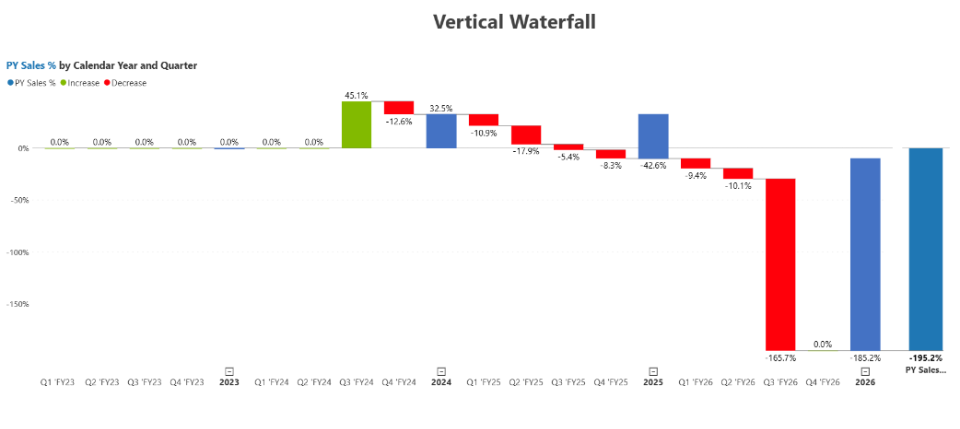
The Waterfall carries the same floating steps as native, but on an axis that holds the hierarchy instead of flattening it. The quarters of each year run as green and red steps, each year closes on a bold blue subtotal bar carrying a collapse toggle, and a grand total closes the sequence here PY Sales % by Calendar Year and Quarter, with each step labelled on the bar. Connector lines run bar to bar, so the running baseline is drawn rather than inferred, and the expand and collapse controls appear once category grouping is switched on for the axis. The terminal total bar appears to be always present, with no documented option to suppress it. It is the reach when the axis must carry the reporting calendar, not just a list of categories.
Stacked Waterfall
The Stacked Waterfall keeps that hierarchy axis and splits every step into its channels, so one bar carries both the movement, and its composition each quarter step holds its channels stacked inside it, with the year subtotals stacked the same way. It is the counterpart to native Breakdown well, driven by a breakdown field of its own, and it reads contribution at quarter and year level at once rather than choosing between them. No member cap is documented, so legibility is managed through ranking, with the remainder clubbed into a single category. It is the reach when the question is not only how far a step moved the total, but which channel moved it.
Variance Waterfall
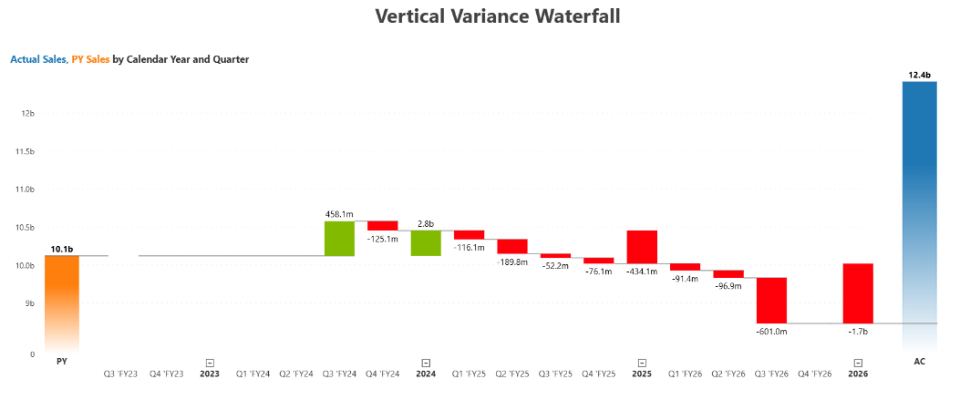
The Variance Waterfall is the family’s real departure, and the one native cannot reach without model work: bind two measures Actual Sales and PY Sales and the visual calculates every variance step itself, with no DAX. PY anchors the left; AC closes the right, and the quarterly variances bridge between them, favorable and unfavorable steps closing on a subtotal each year. The notation Episode 02 covers in bar form apply here too solid actuals, grey prior year, outlined plan, hatched forecast, green and red for the variance steps so the bridge reads to convention rather than by raw color. It is the reach when a review needs to walk between two scenarios, not just the two endpoints.
Waterfall + Column
Waterfall + Column sets two tiers on one axis: the bridge above, the levels below. The top tier runs thin outlined steps from a Target anchor to an Actual Sales anchor; each move labelled. The tier beneath plots the same two measures as columns solid for Target, outlined for Actual Sales, the actual value on the label the same figures Episode 09 read as nested tiles. A give-back of a few hundred million means one thing against a strong year and quite another against a thin quarter, and the two tiers hold both readings at once. This is IBCS C05, pairing the column treatment from Episode 05 with the absolute variance above it; Waterfall + Bar is the same layout rotated, for categories with long labels. It is the reach when a reviewer needs the levels and the walk between them on one surface.
Side by Side Waterfall
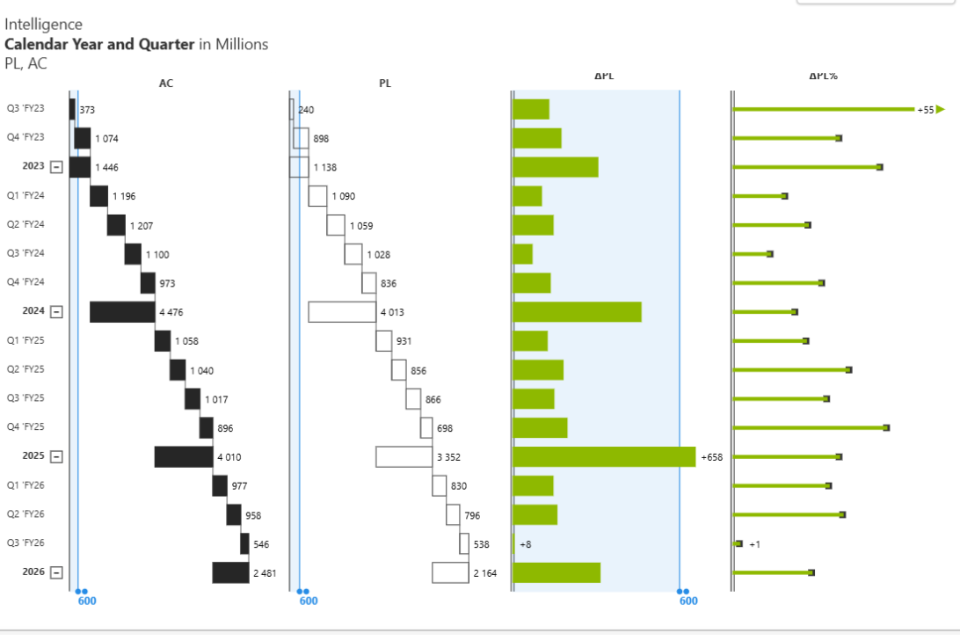
The Side-by-Side Waterfall is IBCS template C12, and with the IBCS theme it renders in full: four tiers against one shared row axis, with the scale declared once in the header rather than repeated on every bar. AC cascades in solid fill, and PL sits beside it in outline, so the notation itself carries the scenario, and a reader knows which walk is the actual and which the plan without consulting a legend. Then ΔPL prints the absolute variance as bars and ΔPL% the relative variance as lollipops. Carrying both variance tiers is the point rather than duplication, because they rank differently: 2025’s 4.0b against a 3.4b plan is the widest gap in absolute terms at +658m, while 2023’s 1.4b against 1.1b is the widest in relative terms at +27%. Read either tier on its own and you would name a different year. It is the reach when a review must agree which period ran furthest ahead of plan, not merely that the plan was beaten.
The configuration underneath is the same across all five categories, an actual, and up to three comparisons with the chart type switch and the rotate control deciding whether the bridge runs down the page, across it, or twice over.

Built for the Planning Workflow
Because these charts sit on your Power BI semantic model, they bridge the data you already report on today. They go further when that model is paired with a plan. A waterfall in a planning review is usually asking a reconciliation question what took the business from the number it committed to the number it delivered, and in which quarter? Which makes the plan one of the two endpoints rather than a line drawn beside the bars.
In most reporting builds, those two endpoints are fixed. The target the bridge starts from and the prior-year base it walks off are loaded into the model at the start of the period and sit frozen there while actuals move against them, accurate about the past and silent about every revision since. A bridge feels that more sharply than most charts, because the frozen figure is not one series among several it is an anchor the entire cascade is measured from.
Read from a live plan instead, a fourth-quarter target trimmed this morning re-bases both anchors and re-derives every step between them by the afternoon, with no variance measure to update and no reconciliation step. At a quarterly close that is what lets a finance team walk leadership from target to actual and close on which quarter’s plan must change. The Intelligence Sheet reads the model rather than writing back to it, so the plan stays where planners maintain it while the cascade stays current.
A waterfall is an argument about how one number became another. Built on a target that was frozen at the start of the period, it is an argument nobody in the room is having any more.

When to Reach for Which
| If your report needs… | Reach for… |
| A flat run of steps on one additive measure, themed and interactive | Power BI waterfall |
| A period-to-period bridge split into its top contributors, with the rest grouped | Power BI waterfall |
| An interaction-heavy or very large report where native optimization matters | Power BI waterfall |
| A cascade whose axis carries the reporting calendar, with year subtotals and in-chart collapse | Intelligence Sheet Waterfall |
| A bridge between two measures derived by the visual, styled to IBCS convention | Intelligence Sheet Variance Waterfall |
| Scenario levels and the variance between them read on one surface | Intelligence Sheet Waterfall + Column |
| A bridge whose endpoints move when the underlying plan is revised | Intelligence Sheet waterfall variants |
For a flat bridge on a governed model themed, interactive, and free Power BI’s native waterfall is the right starting point, and for exact ranking of the drivers behind a change, a bar from Episode 04 reads more precisely than a run of floating steps.
For a cascade whose axis carries the year tier, a variance bridge derived from two measures, a column tier beneath the walk, or two scenarios cascading side by side, the Intelligence Sheet is the fit the whole waterfall family on one visual surface, framed around the semantic model you already report on.

Getting Started Waterfall Charts in Fabric Intelligence
In the Intelligence Sheet, add a Waterfall visual and connect it to your Power BI semantic model for the same model your Power BI reports already use. Put your calendar hierarchy in Category, your measure in Actual(s), and prior year, plan, or forecast in Comparison 1 to 3. Switching between the five layouts is a chart type toggle, and vertical to horizontal is a rotate control no rebuild between them.
Start with the comparison of wells. Bind an actual and a comparison, and the visual derives every variance step between them, so the bridge exists without a single measure being added to the model which is the part native cannot answer. The on-object menu then converts a bar into a result bar or inverts a cost line sign, and the IBCS notation carries the scenario in the fill rather than in a legend.

What’s Next
Episode 14 keeps the time axis, but trades accumulation for rank: the ribbon chart, where Power BI’s native ribbon meets the Intelligence Sheet’s variants, and the question becomes how categories change places from one period to the next.

Resources
- Plan in Microsoft Fabric IQ Microsoft Learn official documentation and getting started guides
- Visualize simulations, budgets, and forecasts Microsoft Learn how the Intelligence Sheet updates in real time when planning sheet values change
- Lumel Intelligence the Lumel product page and three-pillar architecture overview
- Foundation Part 1: Introducing the Intelligence Sheet where Plan sits within Fabric IQ
- Foundation Part 2: Inside the Intelligence Sheet Canvas the visual library, data architecture, and series index