How close is a single actual to its target, read at a glance? That is the gauge question, and it is the whole of it one number, one benchmark, one shape that says whether you are ahead or behind before anyone reads a label.
A gauge compresses a KPI review into one shape an arc or a bar, a fill that shows where you stand, a mark for where you need to be built for a dashboard tile or a scorecard, not for ranking several categories at once (a bar, Episode 04, is the better reach the moment there is more than one thing to compare). Power BI ships one gauge, a semi-circular arc. The Intelligence Sheet ships three: a Horizontal and a Vertical Linear Gauge that is read as bullet-style bars, and an Angular Gauge that can carry two KPIs on one ring with the target printed on the chart either way, not left to a hover.
Both read from the same Power BI semantic models; the difference is where the target comes from a number typed once, or one that moves with the plan behind it. The running example is a single scorecard measure, Sales Amount, read against a target and a full min-max range.
Watch It in Action
Power BI Gauge
Power BI’s native Gauge is built around four fields: Value, Target value, Minimum value, and Maximum value. It draws a semi-circular arc from the minimum to the maximum, fills the arc from zero to the actual value, and marks the target as a short tick on the arc itself. The actual prints as the one large number at the center; the minimum and maximum sit as plain labels at the two ends of the arc.
In this build, Sales Amount is the Value, with Minimum $0 and Maximum $400M setting the ends of the arc and a $300M Target marked by the tick. The center reads $218.81M a little over halfway across the arc, with the target tick visibly further round, closer to three-quarters of the way to the ceiling. The gauge answers the scorecard question in one look: is the actual on the fill side of the tick, or past it?
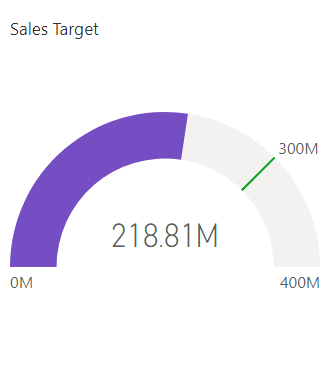
The native Power BI gauge $218.81M filled against a $0–$400M range, target ticked on the arc.
Where the native gauge shines
The native gauge is a first party; no-assembly visual drops it on a canvas, wires the four fields (Minimum two), and themes with the rest of the report like any other native chart. The Fill color accepts a conditional-formatting field-value expression, so the arc itself can shift from red toward green as the value closes in on the target, driven by a measure rather than a fixed setting. For a single KPI tile on a standard dashboard, it needs nothing more than that.

Gauge in the Intelligence Sheet
The Intelligence Sheet reads the same Value/Target/Min/Max shape from the same Power BI semantic models your existing reports use then hands back more ways to say it. Three visuals sit in the gallery: a Horizontal Linear Gauge, a Vertical Linear Gauge, and an Angular Gauge. Orientation is the first call for a wide bar for a header strip, a tall one for a sidebar, a ring wherever a flat KPI card needs more shape. Make that call, and a second decision opens underneath: the two Linear Gauges share one set of chart-type looks between them, and the Angular Gauge has its own neither one touches a field.
Horizontal Linear Gauge and Vertical Linear Gauge: These are two separate visuals in the gallery, not one gauge with a rotate switch. Add the horizontal one and the bar reads left to right against a bottom axis, the target line standing vertical across the fill like a finish line. Add the vertical one and the same read runs bottom to top, the target line horizontal with its value bolded beside it closer to a thermometer. Both pull the same Category, Actual, Target, Max, and Min fields, so choosing between them is a placement decision where does this tile sit on the page not a rebuild.
What the two share matters more than how they’re rotated: three chart-type looks, switchable from that same configuration. Linear keeps it plain; a single-color fill against the full range with nothing else on the track. Progress Bar strips it down further, a clean percent-complete strip with no distractions. Qualitative Linear the one built here goes the other way, banding the track itself into red, amber, and green zones behind the fill, so the target zone reads as a color before anyone checks the number. In this build, the $218.8M actual lands squarely in the amber band, short of the $300M target sitting inside the red zone on a $0–$400M track, with a small triangle pointer marking the actual distinctly from the bar’s own edge.
Angular Gauge: One visual, three looks: Semi Circle, Arc, and Circle, reached with the same chart-type switch. The build shown here uses Semi Circle, printing the read as a percentage of the maximum directly under the ring 54.7%, matching $218.8M against the $400M ceiling with the target marked as a tick further round the arc. Left with only the Primary fields filled in, as here, it functions as a single richer gauge. Reach for the secondary axis Secondary Actual, Target, Max, and Min, sitting right beside the Primary set in the same field list when two KPIs need to be read together rather than checked one tile at a time: Sales Amount against its target on the primary axis, Margin % against its own on the secondary, both on one ring instead of two visuals competing for canvas space.
| Horizontal | Vertical | Angular |
Horizontal and Vertical Linear Gauge (Qualitative Linear) and Angular Gauge (Semi Circle) the same $218.8M actual against a $300M target and a $0–$400M range, read three ways.

Built for the Planning Workflow
Because these gauges sit on your Power BI semantic model, the actual Sales Amount here is already live: it works on the data you report on today. Where the gauge goes further, the target is. In most reporting builds the target, minimum, and maximum are constants, typed once and accurate on the day they were set but silent about every revision since so the gauge answers how the business is doing against the plan as it stood then, not as it stands now.
Read those from a live plan instead, and a number revised this morning moves the tick, the fill relative position, and any conditional color by the afternoon no export, no re-publish, no rebuilding the visual. When a quarterly target is reallocated between regions or trimmed after a forecast update, every connected gauge, Linear or Angular, re-bases against the new line without anyone touching it.
A gauge that keeps pace with the plan it measures is a planning instrument, not a static scorecard tile.
When to Reach for Which
| If your report needs… | Reach for… |
| A single KPI arcs on a standard dashboard tile, themed and interactive | Power BI native Gauge |
| A quick fill-vs-target read with no assembly, ready in every report | Power BI native Gauge |
| A bullet-style bar reads actual, target, and full range in one shape | Intelligence Sheet Linear Gauge (horizontal or vertical) |
| Two KPIs read together on one ring via a secondary axis, instead of two separate tiles | Intelligence Sheet Angular Gauge |
| A target, minimum, or maximum that re-bases when the plan behind it is revised | Intelligence Sheet gauge family |
Power BI’s native gauge is the lower-friction starting point for a single KPI tile on a governed, themed report no assembly, no install, wired in four fields.
The Intelligence Sheet gauge family is the fit when the read needs to be a bullet-style bar rather than an arc, when a second KPI belongs on the same ring rather than a second visual, or when the target itself should move with a live plan rather than sit as a constant.
Getting Started Gauge in Fabric Intelligence
In the Intelligence Sheet, add a Horizontal Linear Gauge, a Vertical Linear Gauge, or an Angular Gauge, connect it to the same Power BI semantic model your reports already use, and assign Actual, Target, Max, and Min. Each visual carries three chart-type looks from that one configuration Linear, Progress Bar, and Qualitative Linear on the bars; Semi Circle, Arc, and Circle on the ring so start by switching between them to see which one still reads at the size the tile will actually be.
Two things are worth reaching for once it is placed: the Angular Gauge’s Secondary Actual, Target, Max, and Min, which carry a second KPI on the same ring instead of a second visual, and a plan-driven measure in the Target, Max, or Min wells the one setting that makes the gauge re-base the moment the plan is revised.
What’s Next
Episode 13 turns from a single KPI to a full bridge: the waterfall chart, where Power BI’s native waterfall meets the Intelligence Sheet’s stacked, bridge, and integrated variants for walking a total through its gains and losses.
Resources
- Plan in Microsoft Fabric IQ: Microsoft Learn: official documentation and getting started guides
- Lumel Intelligence: the Lumel product page and three-pillar architecture overview
- Foundation: Part 1 Introducing the Intelligence Sheet: where Plan sits within Fabric IQ
- Foundation: Part 2 Inside the Intelligence Sheet Canvas: the visual library, data architecture, and series index
- Episode 04 Bar Chart Family: the better reach when ranking more than one category
- Episode 11 Scatter / Bubble: the previous episode in the series